Fortface SDK Web Integration in Your Web App
How does it work?
Our SDK is designed to perform the capture of the photo that will be sent to our Fortface API. It is independent of your app’s flow and can be initialized at any moment within your app.
Our SDK does not communicate directly with the Fortface API. See the communication flow below:
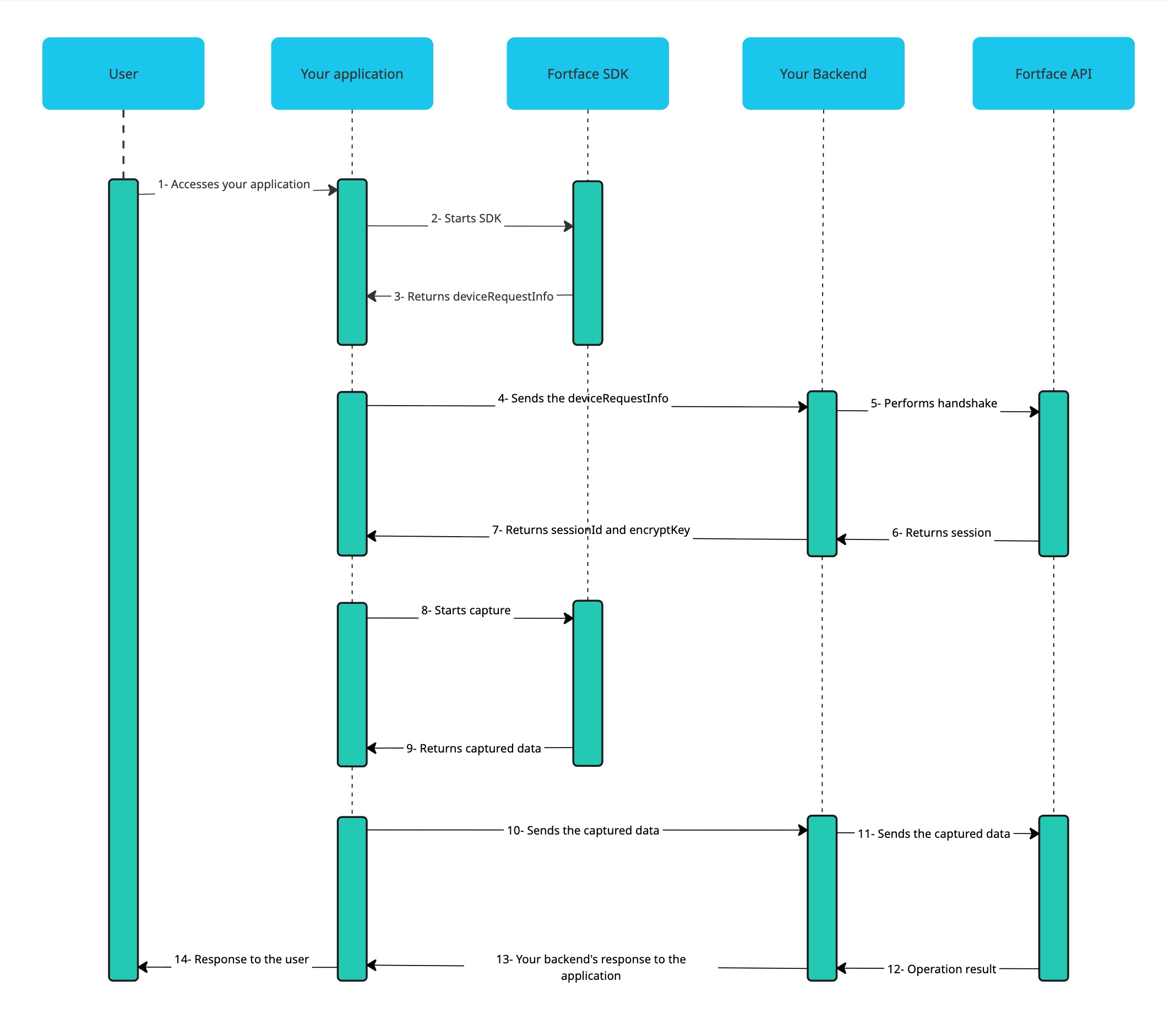
Below are the instructions for integrating our SDK.
CDN Integration
If you still integrate the SDK locally via pnpm/npm (.tgz file), see the deprecated version of this page. The recommended path for new integrations is via CDN.
Recommended option: global bootstrap via CDN
The endpoint https://cdn-loader.isface.live/sdk.js?t=YOUR_CLIENT_ID&v=VERSION is the official bootstrap for the Fortface Web SDK.
When this script is loaded in the browser:
- The
clientId(Gallery Id) sent in thetparameter is validated. - The
versionsent in thevparameter is validated and resolved. - The corresponding bundle is loaded from the Fortface CDN.
- The global
FortfaceSDKobject becomes available for initialization viaFortfaceSDK.load().
In this approach:
- There is no need to install the SDK as a package (
npm,yarn,pnpm).
- For the
clientIdvalue in thetparameter, send your Gallery Id. - For the
versionvalue in thevparameter, send the version compatible with your application.
- HTML + Vanilla Javascript
- React
- Angular
- Vue.js
<!DOCTYPE html>
<html>
  <head>
    <title>Example with Fortface SDK</title>
    <script src="https://cdn-loader.isface.live/sdk.js?t=YOUR_CLIENT_ID&v=VERSION"></script>
  </head>
  <body>
    <fortface-sdk id="fortfaceSdk"></fortface-sdk>

    <script>
      async function fortfaceSdkInit() {
        await FortfaceSDK.load();
        const fortfaceSdk = document.querySelector('#fortfaceSdk');
        const deviceRequestInfo = await fortfaceSdk.start();
      }

      document.addEventListener('DOMContentLoaded', function () {
        void fortfaceSdkInit();
      });
    </script>
  </body>
</html>
// index.html
<script src="https://cdn-loader.isface.live/sdk.js?t=YOUR_CLIENT_ID&v=VERSION"></script>
// sample-page.tsx
import { useEffect, useRef } from 'react';

declare global {
  interface Window {
    FortfaceSDK: {
      load: () => Promise<void>;
    };
  }
}

interface FortfaceSdkElement extends HTMLElement {
  start: () => Promise<string>;
}

export default function SamplePage() {
  const fortfaceSdkRef = useRef<FortfaceSdkElement | null>(null);

  useEffect(() => {
    const init = async () => {
      await window.FortfaceSDK.load();
      const deviceRequestInfo = await fortfaceSdkRef.current?.start();
    };

    void init();
  }, []);

  return <fortface-sdk ref={fortfaceSdkRef as any} />;
}
<!-- index.html -->
<script src="https://cdn-loader.isface.live/sdk.js?t=YOUR_CLIENT_ID&v=VERSION"></script>
// app.component.ts
import { AfterViewInit, Component, CUSTOM_ELEMENTS_SCHEMA, ElementRef, ViewChild } from '@angular/core';

type FortfaceSdkElement = HTMLElement & {
  start: () => Promise<string>;
};

@Component({
  ...
  schemas: [CUSTOM_ELEMENTS_SCHEMA]
})
export class AppComponent implements AfterViewInit {
  @ViewChild('fortfaceSdk') fortfaceSdkRef!: ElementRef<FortfaceSdkElement>;

  async ngAfterViewInit() {
    await (window as any).FortfaceSDK.load();
  }

  async startFortfaceSdk() {
    const deviceRequestInfo = await this.fortfaceSdkRef.nativeElement.start();
  }
}
// index.html
<script src="https://cdn-loader.isface.live/sdk.js?t=YOUR_CLIENT_ID&v=VERSION"></script>
// App.vue
<script setup lang="ts">
import { onMounted, ref } from 'vue';

interface FortfaceSdkElement extends HTMLElement {
  start: () => Promise<string>;
}

const fortfaceSdkRef = ref<FortfaceSdkElement | null>(null);

onMounted(async () => {
  await (window as any).FortfaceSDK.load();
  const deviceRequestInfo = await fortfaceSdkRef.value?.start();
});
</script>

<template>
  <fortface-sdk ref="fortfaceSdkRef"></fortface-sdk>
</template>
Alternative option: programmatic loading via JavaScript
Use this option when it is not possible to declare the <script> tag directly in the application's base HTML.
<div id="fortface-root"></div>

<script>
  async function mountFortfaceSdk(clientId, version, containerSelector) {
    await new Promise(function (resolve, reject) {
      const script = document.createElement('script');
      script.src = 'https://cdn-loader.isface.live/sdk.js?t=' + encodeURIComponent(clientId) + '&v=' + encodeURIComponent(version);
      script.async = true;
      script.onload = resolve;
      script.onerror = function () {
        reject(new Error('Failed to load the Fortface SDK bootstrap'));
      };
      document.head.appendChild(script);
    });

    await FortfaceSDK.load();

    const element = document.createElement('fortface-sdk');
    document.querySelector(containerSelector).appendChild(element);

    return element;
  }

  mountFortfaceSdk('YOUR_CLIENT_ID', 'VERSION', '#fortface-root').then(async function (fortfaceSdk) {
    const deviceRequestInfo = await fortfaceSdk.start();
  });
</script>
To ensure security, the SDK requires that the execution environment supports HTTPS encryption, except in development environments (localhost or 127.0.0.1). Otherwise, the SDK will not initialize and the error FortfaceError.FORTFACE_INSECURE_PROTOCOL will be thrown.
Debug version (staging / homologation)
In staging environments or for debugging purposes, the Fortface Web SDK provides a special variant accessible through the /sdk.debug.js endpoint. The t and v parameters remain the same.
<!-- Production -->
<script src="https://cdn-loader.isface.live/sdk.js?t=YOUR_CLIENT_ID&v=VERSION"></script>

<!-- Debug / Staging -->
<script src="https://cdn-loader.isface.live/sdk.debug.js?t=YOUR_CLIENT_ID&v=VERSION"></script>
For programmatic loading, replace the URL equivalently:
const script = document.createElement('script');
script.src =
  'https://cdn-loader.isface.live/sdk.debug.js?t=' +
  encodeURIComponent(clientId) +
  '&v=' +
  encodeURIComponent(version);
When using the debug endpoint:
- The Fortface CDN serves the debug bundle for the requested version (e.g.
2.5.0-debug-mode). - The CDN response includes the
x-sdk-mode: debugheader. - The version effectively loaded is indicated in the
x-sdk-versionheader.
If you receive a 403 error when requesting the /sdk.debug.js endpoint, please contact the Fortface team to request debug mode access for your environment.
Pre-initialization
Before starting the capture process, it is necessary to establish the device integrity to guarantee secure communication with the Fortface API. Therefore, you must:
- Load the official bootstrap (
/sdk.js?t=YOUR_CLIENT_ID&v=VERSION); - Initialize the SDK via
FortfaceSDK.load(); - Obtain
deviceRequestInfofrom the<fortface-sdk>element.
Establish Device Integrity
Our SDK is built as a Web Component. In the CDN distribution, the component registration is done during FortfaceSDK.load(). Therefore, before using methods like start() and startSession(), wait for this method to resolve.
In applications with Server-Side Rendering (SSR), execute this logic only in the browser.
Initialize the SDK and obtain the deviceRequestInfo.
async function fortfaceSdkInit() {
  await FortfaceSDK.load();

  const fortfaceSdk = document.querySelector('fortface-sdk');
  const deviceRequestInfo = await fortfaceSdk.start();
}
From version 2.3.0, the applyPolyfills function is no longer available. Therefore, there is no need for this configuration, which will be done automatically. If you are using a version prior to 2.3.0, update and follow the previous examples.
With deviceRequestInfo in hand, you can perform a handshake between your back-end and the Fortface API.
handshakeis an important security measure to establish reliable communication between your back-end and the Fortface API, allowing the verification of device authenticity, sharing sensitive information (encryption keys and sessions), and establishing a secure channel for data exchange.
Upon a successful handshake, you are guaranteed that the device is secure and your app has the necessary information to proceed.
Camera Permissions
Our SDK automatically handles the camera permission request. However, if your application needs to request these permissions before calling the SDK’s start method, it is essential to stop any active camera stream before the SDK’s pre-initialization. This ensures that the camera opens correctly for capture. For example:
// Request camera permission before initializing the SDK
const tracks = await navigator.mediaDevices.getUserMedia({ video: true });

// Before pre-initializing the SDK, make sure to stop any active camera stream
tracks.getTracks().forEach((track) => track.stop());

// Now it is safe to pre-initialize the SDK
fortfaceSdk.start();
Capture
Once device integrity is established, let’s see how to start the session.
Usage in webviews
When using the Fortface Web SDK inside a webview, it is important to ensure that the setMediaPlaybackRequiresUserGesture(boolean) configuration is set to false. By default, most webview implementations set this configuration to true, which prevents automatic video playback without user interaction. This restriction will affect your user's experience with the Fortface Web SDK, as it makes it impossible to automatically display the camera feed to help position the user correctly for facial biometrics capture.
It is worth noting that, even if your application was not specifically developed to run inside a webview, it may still be executed within third-party webviews, such as in-app browsers embedded in apps like Instagram or Telegram. In these scenarios, which are usually more limited and keep the default configuration enabled (true), the Fortface Web SDK will display a button so that the user can manually start the camera, ensuring the necessary consent to start the video stream.
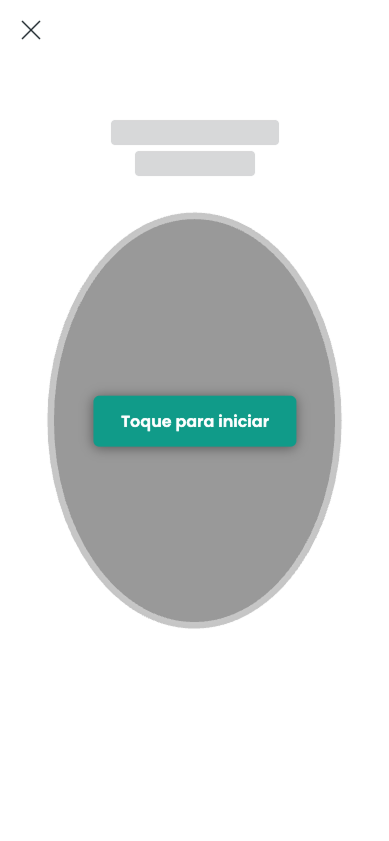
Note: There are rare cases where third-party webviews do not persist the permission granted by the user to access the camera through the Fortface Web SDK. In such situations, the permission dialog may appear more than once, requiring the user to grant camera access again.
Session Initialization
After the handshake, your back-end has the necessary information for your front-end to initialize the session in the SDK using the startSession function.
This function takes 4 parameters:
- fortfaceFinishSession (
IFortfaceFinishSession): the callback function to be called after capture; - sessionId (string): session identifier, received during the handshake;
- sessionKey (string): session key, received during the handshake;
- sessionDetails (
IFortfaceSessionDetails): additional controls for usability to be applied in the session;
Creating a Callback (fortfaceFinishSession)
The fortfaceFinishSession callback function will receive an object with the action performed (FortfaceActionEnum) and the result of the action (IFortfaceData). This allows you to define the flow to be executed after capture:
function fortfaceFinishSession(fortfaceSessionResult: SessionEngineResult) {
  const { action, data, sessionDetails } = fortfaceSessionResult;

  switch (action) {
    case 'capture':
      handleResult(data, sessionDetails);
      break;
    case 'cancel':
      handleCancel(data, sessionDetails);
      break;
    case 'timeout':
      handleTimeout(data, sessionDetails);
      break;
    case 'timeout_ready':
      handleTimeoutReady(data, sessionDetails);
      break;
    case 'error':
      handleError(data, sessionDetails);
      break;
    default:
      break;
  }
}

function handleResult(fortfaceData: IFortfaceData, sessionDetails: {}) {
  const data = fortfaceData.encryptData;
  const metrics = sessionDetails.metrics;
  // Here the flow ends and these are the data to be sent to the Fortface API
}

function handleCancel(fortfaceData: IFortfaceData, sessionDetails: {}) {
  const data = fortfaceData.encryptData;
  const imgPreview = fortfaceData.imgPreview;
  const metrics = sessionDetails.metrics;
  // Here the user canceled the capture and you should send the returned data to the Fortface API and proceed with your cancellation flow
}

function handleTimeout(fortfaceData: IFortfaceData, sessionDetails: {}) {
  const data = fortfaceData.encryptData;
  const metrics = sessionDetails.metrics;
  // Here the capture was canceled because the time ran out. You should send the returned data to the Fortface API and proceed with the timeout flow
}

function handleTimeoutReady(fortfaceData: IFortfaceData, sessionDetails: {}) {
  const data = fortfaceData.encryptData;
  const metrics = sessionDetails.metrics;
  // Here the capture was canceled because the SDK’s ready state timeout was reached.
  // You should send the returned data to the Fortface API and proceed with the ready timeout flow
}

function handleError(fortfaceData: IFortfaceData, sessionDetails: {}) {
  const data = fortfaceData.encryptData;
  const { errorCode, metrics } = sessionDetails;
  // An error occurred and you should proceed with your error flow
}
Additional usability controls (sessionDetails)
The last argument of the startSession function is an optional object of type IFortfaceSessionDetails, which allows the developer to configure additional usability controls applied to the session. This object is constantly evolving, receiving new parameters as new features are added to the SDK. For this reason, it is recommended to always consult the updated documentation to know all the controls available.
Currently, the object of type IFortfaceSessionDetails has the following fields:
-
returnMetrics: a field of typeboolean. When set totrue, this field makes the session metrics be returned in thefortfaceFinishSessioncallback, accessible infortfaceSessionResult.sessionDetails.metrics. If set tofalse,fortfaceSessionResult.sessionDetails.metricswill beundefined. (Default:false) -
useBackCamera: a field of typeboolean. When set totrue, this field makes the rear camera be used for facial biometric capture. If set tofalse, the front camera will be used instead. (Default:false) -
getGeolocation: a field of typeboolean. When set totrue, this field makes the device's location be collected for anti-fraud mechanisms. If set tofalse, the device's location will not be collected. (Default:false)
Ready State
Before starting the facial biometric capture, the SDK initializes essential internal modules for the process to function correctly. This step happens automatically and is completed within moments. During this period, the user will see a message in the interface asking them to wait for the camera to open, which can be customized according to the application's visual identity.
If the modules are not initialized within the maximum configured time (15 seconds by default), the SDK will automatically close. In this situation, the fortfaceFinishSession callback will be triggered with fortfaceSessionResult.action equal to timeout_ready, indicating that the operation was terminated due to exceeding the time limit in the ready state. This timeout can also be customized.
During the actual capture, if a failure is detected in the active camera, the SDK will display a modal allowing the user to choose from other available cameras. Each camera is presented with its respective label and a real-time preview above it. After selecting a new camera, the flow will automatically resume. Additionally, a new button will appear below the oval face positioning area, allowing the user to switch cameras again if they chose the wrong one. The camera switch option is only available in this failure scenario.
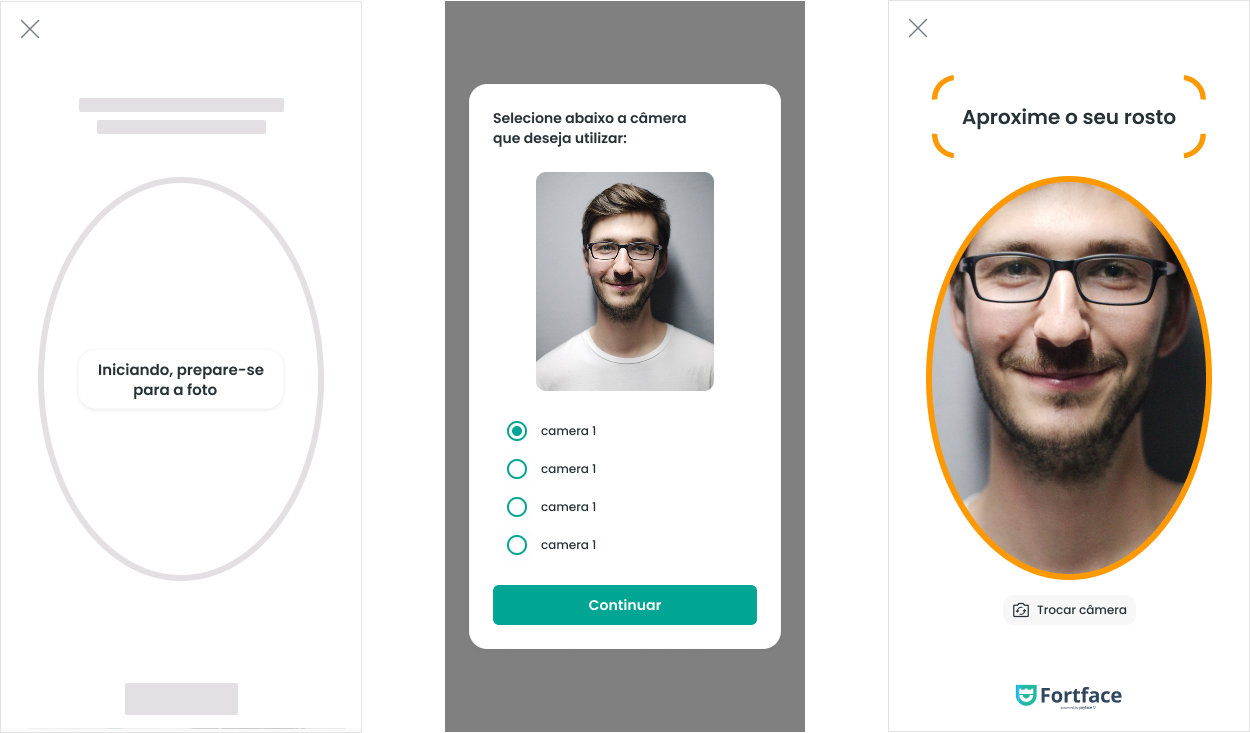
For more details on how to customize interface messages, timeouts, and camera selector behavior, see the Web SDK Customization section.
Calling the startSession Function
- HTML + Vanilla Javascript
- React
- Angular
- Vue
const sessionId = 'response from the Fortface API';
const sessionKey = 'response from the Fortface API';
fortfaceSdk.startSession(fortfaceFinishSession, sessionId, sessionKey, { returnMetrics: true });
const sessionId = 'response from the Fortface API';
const sessionKey = 'response from the Fortface API';
fortfaceSdkRef.current?.startSession(fortfaceFinishSession, sessionId, sessionKey, { returnMetrics: true });
const sessionId = 'response from the Fortface API';
const sessionKey = 'response from the Fortface API';
this.fortfaceSdkRef.nativeElement.startSession(this.fortfaceFinishSession.bind(this), sessionId, sessionKey, {
  returnMetrics: true,
});
const sessionId = 'response from the Fortface API';
const sessionKey = 'response from the Fortface API';
await fortfaceSdkRef.value?.startSession(fortfaceFinishSession, sessionId, sessionKey, { returnMetrics: true });
Mock data for example:
sessionId = "nMIIBIjANBgkqhkiG9w0BAQEFAAOCAQ8AMIIBCgKCAQEA2k"
sessionKey = "-----BEGIN PUBLIC KEY-----\nMIIBIjANBgkqhkiG9w0BAQEFAAOCAQ8AMIIBCgKCAQEA2k+o81Oiti4TDezZYD8Q\nzj2RjO5f/YQHGmC1v7CWC4AJpD9+FOXBBO1pImaSg1gb8kOobRFGWbVdiHm35+PF\nTJceH31r+jKnvfc1TshsQVGtYLm7x5E/GFcjpGx9LdSxiXC6cHdCJf3o02/lytBa\nu8NCoH9FpPjyKrdGdSRb2haviAuEV4N1UBd5uZIsacVqZj52i1z+I94gLVKBZ/UV\npaxjLPWWngmaxbyKE0sEbt9JGleiCb2P1kZA9sU4L4Po7WBNk0+QOsvW9QjvS1+6\ntcZwwIDll2LyUceiFgxF6GkuFcHlBZDDtzymDDC2IYrf9/FNBOPeV1JHXON8T6DY\nAwIDAQAB\n-----END PUBLIC KEY-----\n"
The string that represents the sessionKey contains special characters (such as the line break \n) that must be preserved exactly as received from the Fortface API. Be careful with any accidental manipulation that may occur in:
- Form inputs
- Logs and monitoring systems
- String processing in your backend
- Transfers between services
- Database storage
Any change to these characters may cause the key validation to fail. Make sure the key is passed to the SDK exactly as received from the Fortface API.
For local frontend development only, you may reuse the same valid sessionKey as a mock as many times as necessary. The single-use restriction applies only in the context of backend development, when the Fortface API validates the key.
Versioning
To know which version of our SDK is being used, simply call the getVersion() function. Example:
- HTML + Vanilla Javascript
- React
- Angular
- Vue
const version = await fortfaceSdk.getVersion();
const version = await fortfaceSdkRef.current?.getVersion();
const version = await this.fortfaceSdkRef.nativeElement.getVersion();
const version = await fortfaceSdkRef.value?.getVersion();
Error handling
During use of the Web SDK, errors can occur at different stages of execution. These errors must be handled according to when they happen. There are two main scenarios:
- Errors during execution of the
startmethod; - Errors during facial biometric capture, after executing the
startSessionmethod.
Errors during execution of the start method
Errors thrown during execution of the start method are propagated as exceptions, because at this stage there is no access to the fortfaceFinishSession callback. This means that it is not possible to return the FortfaceActionEnum.ERROR action directly to the application.
Possible errors are:
FORTFACE_INSECURE_PROTOCOL: The SDK is being executed in an insecure environment (for example, via HTTP).FORTFACE_GENERATE_DEVICE_REQUEST_INFO_ERROR: Failure to generate thedeviceRequestInfo, necessary for the handshake.FORTFACE_INTERNAL_SETUP_ERROR: Failure to initialize mandatory internal resources to start the session.FORTFACE_UNEXPECTED_START_ERROR: Unexpected error occurred during execution of thestartmethod.
To handle these errors, you must use the try/catch block to capture the exception:
try {
  await fortfaceSdk.start();
} catch (error) {
  const errorName = error.name;
  switch (errorName) {
    case 'FORTFACE_INSECURE_PROTOCOL':
      // Handle insecure environment error
      break;
    case 'FORTFACE_GENERATE_DEVICE_REQUEST_INFO_ERROR':
      // Handle deviceRequestInfo generation error
      break;
    case 'FORTFACE_INTERNAL_SETUP_ERROR':
      // Handle internal resources initialization error
      break;
    case 'FORTFACE_UNEXPECTED_START_ERROR':
      // Handle unexpected error
      break;
  }
}
Errors during facial biometric capture (startSession):
After executing the startSession method, any errors are returned at runtime through the fortfaceFinishSession callback.
In these cases, the returned action will be FortfaceActionEnum.ERROR, accompanied by the respective errorCode.
Possible errorCode values:
containerTooSmall: When using the embedded customization and the container size is smaller than the minimum requirement of 400x650.notInitialized: ThestartSessionmethod was called before thestartmethod was executed.invalidSessionKey: The providedsessionKeyis invalid.detectorError: Failure in facial biometric points detection; it was not possible to locate valid points in sequence.debugError: Attempt to inspect the SDK in production mode with browser developer tools.cameraDisconnected: The camera was disconnected during capture and theshowPreviewModalIfErrorcustomization (to choose another camera) is disabled.cameraUnreliable: Cameras were detected, but none could be used.noCompatibleVideoDevice: No compatible camera was found.cameraPermissionDenied: The user denied access to the camera.cameraUnavailable: The camera is unavailable (blocked by another resource or system).cameraAccessPolicyRestricted: Access denied by security policies, usually when executing the SDK inside an iframe.cameraAccessUnexpectedError: An unexpected error occurred while accessing the camera.browserUnsupported: The browser is not compatible with facial biometrics (see support section).browserValidationUnexpectedError: An unexpected error occurred while validating the browser.fileCorrupted: Exclusive to the document upload feature. Occurs when the file is corrupted.fileInvalid: Exclusive to the document upload feature. Occurs when the file is invalid, such as a password-protected PDF or without pages.fileSizeTooBig: Exclusive to the document upload feature. Occurs when the file exceeds the allowed limit of 5MB.
Example of handling via callback:
function fortfaceFinishSession(fortfaceSessionResult: SessionEngineResult) {
  const { action, sessionDetails } = fortfaceSessionResult;

  switch (action) {
    case 'error':
      const { errorCode } = sessionDetails;

      if (errorCode === 'cameraPermissionDenied') {
        // Inform the user to allow access to the camera
      }

      // Add other treatments as needed
      break;
  }
}
Recommended best practices
- Keep a log of captured errors to facilitate diagnosis and support.
- Guide the user clearly when errors related to the browser, camera, or permissions occur.
- Regularly check the SDK release notes for new error codes or API changes.
SDK Compatibility with Production Builds
There are some scenarios in which applications using the Fortface SDK run without issues in development, yet encounter failures only in production, after the build or deployment. In such situations — for example, when the camera does not open in production — it is important to consider how the application's build process may be interfering with the SDK's execution.
When using CDN integration, the SDK is not bundled by your application's build process.
To avoid failures in production:
- Ensure the script
https://cdn-loader.isface.live/sdk.js?t=YOUR_CLIENT_ID&v=VERSIONis present in the final HTML of the application, or is injected into the browser before callingFortfaceSDK.load(). - Execute
FortfaceSDK.load()only on the client-side. - In SSR applications, protect the flow to prevent execution on the server.
- Review CSP policies to allow
cdn-loader.isface.liveandcdn.isface.liveinscript-src.
Typescript
1. FortfaceSdk
interface FortfaceSdk {
  getVersion: () => Promise<string>;
  setCustomizer: ({ camera, instructions }: IFortfaceCustomizer) => Promise<void>;
  start: () => Promise<string>;
  startSession: (
    fortfaceFinishSession: IFortfaceFinishSession,
    sessionId: string,
    sessionKey: string,
    sessionDetails?: IFortfaceSessionDetails
  ) => Promise<void>;
}
2. IFortfaceSessionDetails
interface IFortfaceSessionDetails {
  returnMetrics?: boolean;
  useBackCamera?: boolean;
  getGeolocation?: boolean;
}
3. IFortfaceFinishSession
interface IFortfaceFinishSession {
  (fortfaceSessionResult: IFortfaceSessionResult): void;
}
4. IFortfaceSessionResult
interface IFortfaceSessionResult {
  action: FortfaceActionEnum;
  data: IFortfaceData;
  sessionDetails?: {
    errorCode?: FortfaceSessionErrorCode;
    metrics?: IFortfaceReturnMetrics;
  };
}
5. FortfaceActionEnum
enum FortfaceActionEnum {
  ABORT = 'abort',
  CANCEL = 'cancel',
  CAPTURE = 'capture',
  TIMEOUT = 'timeout',
  TIMEOUT_READY = 'timeout_ready',
  ERROR = 'error',
}
6. IFortfaceData
interface IFortfaceData {
  encryptData?: {
    data: string;
    imgData?: string;
    key: string;
  };
  imgPreview?: string;
}
7. FortfaceSessionErrorCode
enum FortfaceSessionErrorCode {
  detectorError = 'detectorError',
  debugError = 'debugError',
  cameraUnreliable = 'cameraUnreliable',
  fileCorrupted = 'fileCorrupted',
  fileInvalid = 'fileInvalid',
  fileSizeTooBig = 'fileSizeTooBig',
  invalidSessionKey = 'invalidSessionKey',
  cameraDisconnected = 'cameraDisconnected',
  noCompatibleVideoDevice = 'noCompatibleVideoDevice',
  cameraPermissionDenied = 'cameraPermissionDenied',
  cameraUnavailable = 'cameraUnavailable',
  cameraAccessPolicyRestricted = 'cameraAccessPolicyRestricted',
  cameraAccessUnexpectedError = 'cameraAccessUnexpectedError',
  browserUnsupported = 'browserUnsupported',
  browserValidationUnexpectedError = 'browserValidationUnexpectedError',
  notInitialized = 'notInitialized',
  containerTooSmall = 'containerTooSmall',
}
8. IFortfaceReturnMetrics
interface IFortfaceReturnMetrics {
  downloadFiles: number;
  openCamera: number;
  totalCaptureTime: number;
  captureTime: number;
}
9. IFortfaceCustomizer
interface IFortfaceCustomizer {
  base?: IFortfaceBase;
  camera: IFortfaceCamera;
  cameraPreview: IFortfaceCameraPreview;
  instructions: IFortfaceInstructions;
  modal?: IFortfaceModal;
  embedded?: IFortfaceEmbedded;
}
10. IFortfaceBase
export interface IFortfaceBase {
  timeout?: number;
}
11. IFortfaceCamera
interface IFortfaceCamera {
  timeout?: number;
  cancelButtonImage?: string;
  showCancelButton?: boolean;
  alertColor?: string;
  successColor?: string;
  loadingColor?: string;
  loadingStroke?: string;
  facePositioned?: string;
  faceFar?: string;
  faceNear?: string;
  noFace?: string;
  noFaceYaw?: string;
  faceRollLeft?: string;
  faceRollRight?: string;
  faceCenterLeft?: string;
  faceCenterRight?: string;
  faceCenterUp?: string;
  faceCenterDown?: string;
  facePitchIsUp?: string;
  facePitchIsDown?: string;
  brightnessEvaluation?: {
    lowBrightnessMessage?: string;
    highBrightnessMessage?: string;
    lowBrightnessIcon?: string;
    highBrightnessIcon?: string;
    iconBackgroundColor?: string;
    feedbackColor?: string;
    validationTimeout?: number;
  };
  frameTextVisible?: boolean;
  switchCameraButtonVisible?: boolean;
  waitCameraDescription?: string;
  background?: string;
  font?: string;
  textColor?: string;
  logo?: string;
  changeCameraButtonBgColor?: string;
  changeCameraButtonTextColor?: string;
  changeCameraButtonRadius?: string;
  webviewPlayButtonBgColor?: string;
  webviewPlayButtonTextColor?: string;
  webviewPlayButtonRadius?: string;
  webviewPlayButtonDescription?: string;
}
12. IFortfaceCameraPreview
interface IFortfaceCameraPreview {
  showPreviewModalIfError?: boolean;
  title?: string;
  background?: string;
  radioColor?: string;
  buttonBgColor?: string;
  buttonRadius?: string;
  buttonTextColor?: string;
}
13. IFortfaceInstructions
interface IFortfaceInstructions {
  showInstructions?: boolean;
  background?: string;
  buttonBgColor?: string;
  buttonRadius?: string;
  buttonTextColor?: string;
  iconColor?: string;
  textColor?: string;
  cancelButtonImage?: string;
  showCancelButton?: boolean;
  font?: string;
  title?: string;
  noItemsMessage?: string;
  placeMessage?: string;
  expressionMessage?: string;
  positionMessage?: string;
  backgroundIconColor?: string;
}
14. IFortfaceModal
export interface IFortfaceModal {
  available?: boolean;
  overlayColor?: string;
  overlayOpacity?: string;
  minScreenWidth?: number;
}
15. IFortfaceEmbedded
export interface IFortfaceEmbedded {
  enabled?: boolean;
}
Error, Cancellation, Timeout, and Timeout_Ready Callback
When an attempt to capture the user's face is not completed successfully—for example, when the user cancels the capture, the capture does not occur within the specified time, or the SDK identification engine's ready state timeout is reached—it is important that this event is sent to the backend so that we have correct metrics of capture successes or failures.
The SessionEngineResult received in the finishedSessionEngine function is an object with three properties: data, action (the action performed by the SDK), and may contain sessionDetails, in case of error.
As mentioned earlier in the Capture section, the data contains encrypted information and can be converted to JSON. However, unlike the capture, in this scenario after conversion to JSON, we will only have the following fields:
{
    key: String,
    data: String
}
Reminder: The keys “key” and “data” are generated by the SDK, sent to your back-end, and then to the Fortface API.
Implementation Example
- The SDK detects that the capture was canceled.
- An encrypted object is created.
- The SDK is terminated and the generated payload along with the action performed is sent.
- In the implementation app, the first parameter of the
startSessionfunction is a callback function that returns the SDK result.
// Callback function handling your statuses

const handleSessionCallback = async (fortfaceSessionResult: IFortfaceSessionResult) => {
  switch (fortfaceSessionResult.action) {
    case 'error':
      const errorCode = fortfaceSessionResult.sessionDetails?.errorCode;
      handleMetrics(fortfaceSessionResult.data);
      break;
    case 'cancel':
      handleMetrics(fortfaceSessionResult.data);
      break;
    case 'timeout':
      handleMetrics(fortfaceSessionResult.data);
      break;
    case 'timeout_ready':
      handleMetrics(fortfaceSessionResult.data);
      break;
  }
};
Support
The minimum versions for each browser supported by our SDK Web are listed below:
Android:
- Chrome: v112
- Firefox: v110
- Edge: v103
- Samsung Internet: v11.1
- Opera: v73
iOS:
- Minimum iOS version for all browsers: v15.4
- Chrome: v112
- Firefox: v110
- Edge: v103
- Safari: v15.4
- Opera: v73
Desktop:
- Chrome: v103
- Firefox: v103
- Edge: v103
- Safari: v15.4
- Opera: v86
Summary
- Download the SDK;
- Installation;
- Capture the
deviceRequestInfo; - Perform the Fortface API handshake (via your backend);
- Create the callback function;
- Start the session;
- Receive the data (data, imgData, key);
- Send to the Fortface API (via your backend);
- Receive the response from the Fortface API and proceed with your business logic;