Fortface SDK Integration in Your iOS App
How does it work?
Our SDK is designed to capture or upload the document photo and send it to our Fortface API. To do this, there is a UIViewController that operates independently from your app, launched by an Engine when established, and automatically terminates after processing.
Our SDK does not communicate directly with the Fortface API; see the communication flow below:
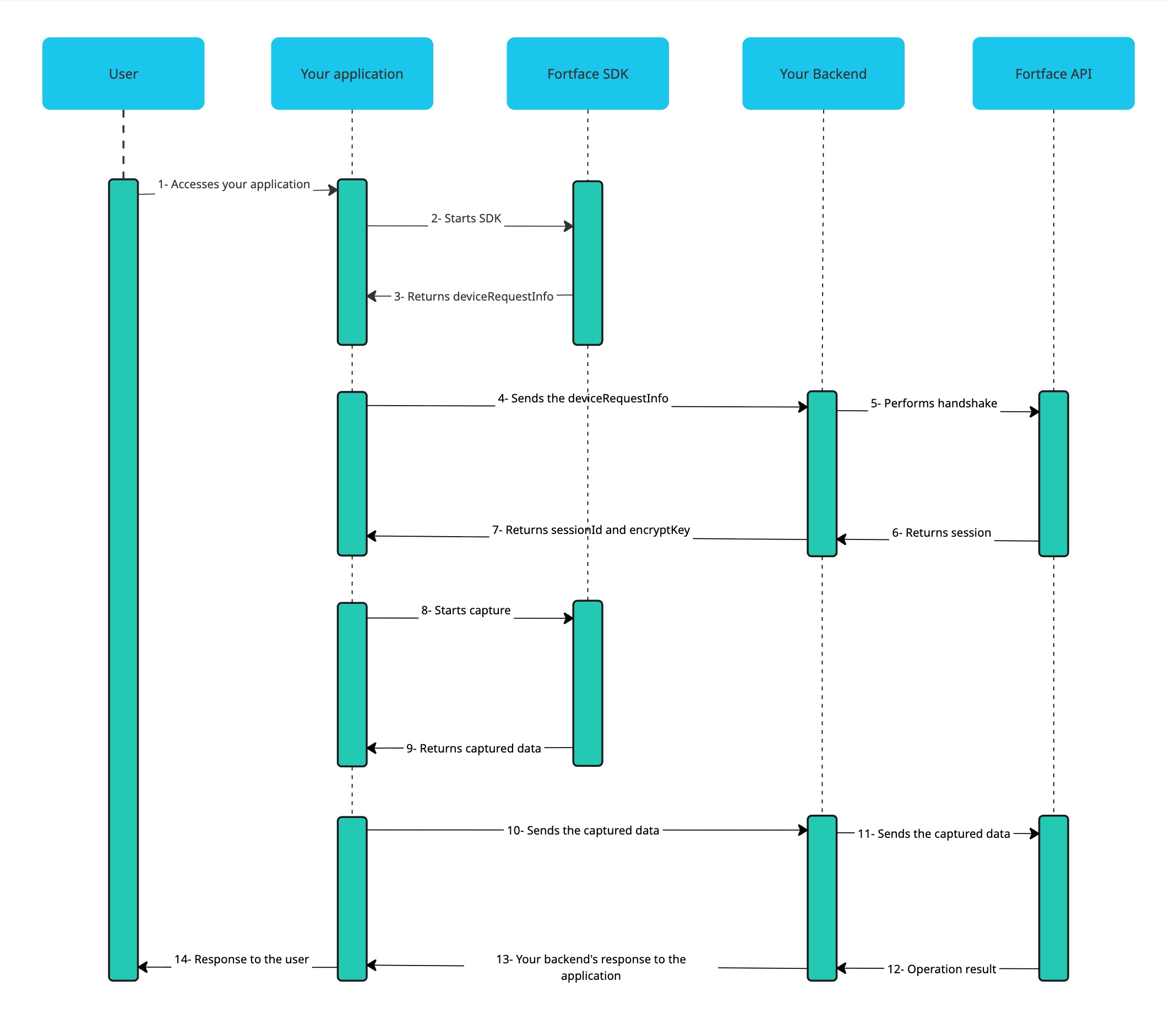
Below are the instructions for integrating our SDK, the process flow to correctly access our service, and a step-by-step guide on how to build an Engine.
Installation
Requirement
iOS: The minimum supported version is 13.0
Installation
Versions starting from 1.8
1. Import folder via local SPM
Download the file by clicking the link below and unzip it: Fortface.xcframework-1.9.zip
- In your project, go to
Package Dependenciesand click the+at the end of the Packages list. - A new screen to add packages will open. In the bottom-right corner, click
+. - At the bottom of the screen, click
Add localand select the folder you downloaded earlier. - Select your project target and click
Add Package. - The new dependency should appear on the right side of your Xcode under Package Dependencies.
Versions prior to 1.8
1. Add the file to your project
First, you need to add the Fortface.framework to your project. Download it by clicking on the following link and unzip the file: Fortface.xcframework-1.9.zip.
To include the Fortface SDK dependency in your app, simply add the sdk.framework folder to your project.
Example:
your_project/Fortface.framework
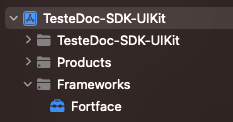
Permission
To capture the photo, our SDK needs access to the device’s camera. Therefore, permission is requested on first access.
Follow these steps:
- In Xcode, in the project navigator (on the left), click the project icon (blue) to select it;
- In the main project view, under the "TARGETS" section, select your app;
- Go to the "Info" tab, in the "Custom iOS Target Properties" section, and in the last Key click the plus (+) sign to add a new property;
- Select "Privacy - Camera Usage Description";
- In the "Value" field, enter a message explaining why the app needs to access the camera. For example: "Camera access is required to capture photos and videos."
Example:

Pre-initialization
Before starting the capture process, it is necessary to establish the device’s integrity to ensure secure communication with the Fortface API. Therefore, you must:
- Import our SDK into your app;
- Instantiate
FortfaceSDK.
Establish Device Integrity
Initialize the SDK and obtain the deviceRequestInfo.
- Swift
import Fortface

let deviceRequestInfo = FortfaceSDK.start(isDebugMode: true)
print(deviceRequestInfo)
// ztdTVLuGyQegvUnEtwAzcHbK8RoA9CXTuNRpCi9YXcwlzWpzOff+iOvUMkdprLk1E3npSKmk868x4pdJELztvRwu0auBrQdVFTu4wUI8ne35blqq1fds0ZHkOx8pfZGD4SIIPEVTEg2+uXQ8k6lxg7xoSnGzIPQJBZJmQWyDECXKDlXt+AAzMGN4lIWB2uM3ncwQLHPGDcGx52EgXBt3yQV7xZrCdinlwlDb21GK1kjygkRixqCvcB3LudlD8bYKKZq1PO5+faL0gFp6cTWpU9Fqkf7l9kbMc/5n+RGE83QzcQuLBzphDmIX2EUsqIdKFk/eg8WqAA9iC9YX4271/gt6RXqy2oQVJ4cyqD6bpLcRZtk/kLcW1lbo1h4bWyTyjC3XXnRPZVComA51s3Ouzxm4IxKX/EaTMd88n/ABiuE2s2DDKKKYc+WbqrDJo1btFHuXDA+O66mjrNKP+VE/CgtOrWF6W4x2cnpTNBJALmX23tion0caYxzbYpC18i3U
In FortfaceSDK, the start method takes one parameter and returns a string:
- Parameter
isDebugMode: a boolean that enables/disables debug mode. The default value isfalse;- Use
trueto enable debug mode; - Use
falsein production, so the device’s integrity is verified and, if unsuitable for transactions, aFortfaceExceptionwith the message There is something wrong! is thrown.
- Use
- The return stored in
deviceRequestInfois a string used to validate the integrity of the device connected to our SDK. A new value is generated each time the method is called (the code above is an example).
With deviceRequestInfo in hand, you can now perform a handshake call between your back-end and the Fortface API.
The
handshakeis an important security measure to establish reliable communication between your back-end and the Fortface API, allowing verification of device authenticity, sharing of sensitive information (encryption keys and sessions), and establishing a secure data exchange channel.
Upon a successful handshake, you are assured that the device is secure and your app has the necessary information to proceed.
Capture and Document Upload
The maximum file size (PDF/Image) for upload is 4MB.
Larger files will be rejected with error code FileSizeTooBig.
Once device integrity is established, let’s see how to start the session and use the IFortfaceEngine interface to perform the capture.
Establish the Device Session
Implement a class that extends IFortfaceEngine.
- Swift
class Engine: IFortfaceEngine {

    init(sessionId: String, sessionKey: String, previousDoc: DocumentTypeEnum, documentList: [DocumentTypeEnum], openPhotoGalery: Bool) {
         // For document capture
        FortfaceManagerSession.startDocSessionEngine(
            engine: self,
            sessionId: sessionId,
            sessionKey: sessionKey,
            documentTypes: documentList,
            previousDocType: previousDoc,
            orientationManager: FortfaceOrientationManager()
        )

         // For document upload
         FortfaceManagerSession.startUploadDocSessionEngine(
            engine: self,
            sessionId: sessionId,
            sessionKey: sessionKey,
            documentTypes: documentList,
            openPhotoGalery: openPhotoGalery,
            previousDocType: previousDoc
        )
    }

    func finishedSessionEngine(sessionEngineResult: SessionEngineResult) {
      switch sessionEngineResult {
        case .capture:
          captured(data: sessionEngineResult.data ?? Data())

        case .cancel:
          canceled()

        case .timeout:
          timeout()

        case .deniedCamera:
          cameraNotAuthorized()

        case .error:
            handleErrorAction(sessionDetails: sessionEngineResult.sessionDetails ?? Data())

        default: return
      }
    }

    private func captured(data: Data) {
        let sdkData = try? JSONSerialization.jsonObject(with: data, options: []) as? [String: String]
        // Here the flow ends and these are the data to be sent to the Fortface API
    }

    private func canceled() {
        // Here the user canceled the capture. You should proceed with your cancellation flow.
    }

    private func timeout() {
        // Here the capture was canceled because time ran out. You should proceed with your timeout flow.
    }

    private func cameraNotAuthorized() {
        // Here camera access was not granted by the user. You should proceed with your camera permission flow.
    }

    private func handleErrorAction(sessionDetails: Data) {
        // Here we receive a JSON with the error type that occurred.
    }
}
In this class, you initialize FortfaceManagerSession and its method startDocSessionEngine which takes 5 or 6 parameters:
engine: represents your Engine class that implements theIFortfaceEngineinterface of our SDK. This will be explained further in the Creating an Engine section.sessionId: the session id generated by the Fortface API;sessionKey: the encryption key generated by the Fortface API;documentTypes: represents the list of accepted documents. Document types are ofDocumentTypeEnumand can be: RG_FRONT, CNH_FRONT, RG_BACK, CNH_BACK, UNDEFINED, DOC_NOT_FOUND, PASSPORT.previousDocType: represents the type of document captured previously. When capturing or uploading a document for the first time, this parameter should be null. The value for this parameter is obtained from the response of the Fortface API service after sending the first side.openPhotoGalery: used only for document upload. Receives aBoolindicating if the upload will be via the photo gallery or file gallery.orientationManager: this class is responsible for determining the device's orientation.getGeolocation: Define whether the SDK should collect location coordinates for anti-fraud reinforcement. (optional)
The startDocSessionEngine method, which currently accepts up to six parameters for document capture, will be discontinued. This method is already marked as obsolete (@Deprecated) and will stop functioning in future SDK releases.
The previousDocType and documentTypes parameters will be deprecated in upcoming versions.
- Swift
class FortfaceOrientationManager: IFortfaceOrientationManager {
    private func lockOrientation(_ orientation: UIInterfaceOrientationMask) {
        if let delegate = UIApplication.shared.delegate as? AppDelegate {
            delegate.orientationLock = orientation
        }
    }

    func lockOrientation(_ orientation: UIInterfaceOrientationMask, andRotateTo rotateOrientation: UIInterfaceOrientation) {
        self.lockOrientation(orientation)
        UIDevice.current.setValue(rotateOrientation.rawValue, forKey: "orientation")
    }
}
It is necessary to add this configuration in the AppDelegate of the integrating app so that the orientationManager can properly handle screen rotation. Currently, only the portrait orientation is supported during document capture.
- Swift
import UIKit

class AppDelegate: UIResponder, UIApplicationDelegate {
    (...)
    var orientationLock = UIInterfaceOrientationMask.all
    func application(_ application: UIApplication, supportedInterfaceOrientationsFor window: UIWindow?) -> UIInterfaceOrientationMask {
        return self.orientationLock
    }
}
Mock data for example:
sessionId = "nMIIBIjANBgkqhkiG9w0BAQEFAAOCAQ8AMIIBCgKCAQEA2k"
sessionKey = "-----BEGIN PUBLIC KEY-----\nMIIBIjANBgkqhkiG9w0BAQEFAAOCAQ8AMIIBCgKCAQEA2k+o81Oiti4TDezZYD8Q\nzj2RjO5f/YQHGmC1v7CWC4AJpD9+FOXBBO1pImaSg1gb8kOobRFGWbVdiHm35+PF\nTJceH31r+jKnvfc1TshsQVGtYLm7x5E/GFcjpGx9LdSxiXC6cHdCJf3o02/lytBa\nu8NCoH9FpPjyKrdGdSRb2haviAuEV4N1UBd5uZIsacVqZj52i1z+I94gLVKBZ/UV\npaxjLPWWngmaxbyKE0sEbt9JGleiCb2P1kZA9sU4L4Po7WBNk0+QOsvW9QjvS1+6\ntcZwwIDll2LyUceiFgxF6GkuFcHlBZDDtzymDDC2IYrf9/FNBOPeV1JHXON8T6DY\nAwIDAQAB\n-----END PUBLIC KEY-----\n"
The string that represents the sessionKey contains special characters (such as the line break \n) that must be preserved exactly as received from the Fortface API. Be careful with any accidental manipulation that may occur in:
- Form inputs
- Logs and monitoring systems
- String processing in your backend
- Transfers between services
- Database storage
Any change to these characters may cause the key validation to fail. Make sure the key is passed to the SDK exactly as received from the Fortface API.
For local frontend development only, you may reuse the same valid sessionKey as a mock as many times as necessary. The single-use restriction applies only in the context of backend development, when the Fortface API validates the key.
Understanding the code snippet:
- The
initcallsFortfaceManagerSession.start - The session is created and the camera is rendered on the screen to capture the user’s document
- Obs: in case of document upload, the gallery of files or photos is opened.
- The data is encrypted and sent along with the captured photo to the Fortface API
- The return occurs in the
finishedSessionEnginecallback sessionEngineResultis the object that has three properties:data,action, andsessionDetails.- If
sessionEngineResult.actionreturnscapture, it means the flow proceeded as expected and the capture/upload data was returned. datacontains encrypted information and can be converted to JSON for easier handling. The keys are generated by the SDK, sent to your backend and then to the Fortface API.
{
    key: String,
    data: String,
    imgData: String
}
-
If
sessionEngineResult.actionreturnscancel, it means the user canceled the capture by tapping the Back button. In that case, proceed with the cancellation flow;- It is possible to hide the Back button and, consequently, not have a
cancelaction. See more details in the Customization section.
- It is possible to hide the Back button and, consequently, not have a
-
If
sessionEngineResult.actionreturnstimeout, it means that the capture time limit was reached. In that case, proceed with the timeout flow.- This
actionrepresents the time during which the SDK remains open, whether a capture occurs or not. When time runs out, the SDK terminates and the camera closes; - The default time is 20 seconds:
- If you wish to keep it, no change is needed;
- If you wish to change it, simply customize the value in seconds, see more details in the Customization section.
- This
-
If
sessionEngineResult.actionreturnsdeniedCamera, it means that the user did not grant camera access when the permission alert appeared. In that case, proceed with the camera permission flow. -
If
sessionEngineResult.actionreturnserror, it means that an error occurred during the capture or upload of the document. In this case, you should follow the error flow.- The type of error is returned in the JSON
sessionDetailsthat can be decoded using theSessionDetailsModelmodel. Today the errors received can be:- documentNotFound: code returned when the selected file (PDF/Image) cannot be found.
- fileSizeTooBig: code returned when the selected file (PDF/Image) is larger than the allowed limit of 4MB.
- fileCorrupted: code returned when the selected file (PDF/Image) is corrupted.
- The type of error is returned in the JSON
ATTENTION!!
The flow is executed for each “side” of the document, i.e., front and back. Each must go through the complete flow, including the Handshake and startDocSessionEngine. For capturing the second side, the document type (document side) recognized in the first capture must be provided; this information is available in the response from the Fortface API service. The JSON property referring to the document type is type, contained in the fortfaceSdk object.
Example response JSON from the Fortface service API for document capture:
{
   "api":{
      "timestamp":1741712439604,
      "version":"v1.13"
   },
   "handshake":{
      "sessionId":"187ffa8d-016d-c0962506f5ab",
      "sessionKey":"-----BEGIN PUBLIC KEY-----\nMIIBIjANBgkqhkiG9w0BAQEFAAOCAQ8AMIIBCgKCAQEA2t6V+LTwyClMN/2Dy5W8\nrJKMAwP45QTq+8e3RcNowUqKEDrsjSkBDYugYCaEuLY66pP3ndm8MfenHxuxAqGC\n3NagAUr83+kJufsizuUJTYC2/1CXeox8U1j4S0Ewt/4rr9SIZCwBisiFiT0THt6QFjE\nmwWMYVT4RjRUK8LV6pF1HJvjFHI6oXF2KjjFwVqXur5LB7sj9f70ddcp3Fiv/3Tn\nVQIDAQAB\n-----END PUBLIC KEY-----\n"
   },
   "message":"",
   "providers":{
      "fortfaceSdk":{
         "automatic":true,
         "confidence":0.73,
         "type":"CNH_FRONT"
      },
      "identify":{
         "status":"PENDING"
      },
      "ocr":{
         "status":"PENDING",
         "type":"ocr"
      }
   },
   "sdk":{
      "brand":"APPLE",
      "model":"IPHONE_14",
      "platform":"IOS"
   },
   "title":""
}
Versioning
To know which version of our SDK is being used, simply call the function FortfaceSDK.getVersion() which will return a String with its value. Example:
let sdkVersion = FortfaceSDK.getVersion()
print(sdkVersion)
// 1.5.2
Callback for cancellation and timeout
When an attempt to capture the user's face is not completed successfully, for example when the user cancels the capture or when the capture does not happen during the set time, it is important that this event is sent to the backend so we have correct metrics for capture success or failure.
To allow us to get data from canceled or timed-out captures, our SDK has callbacks for the cancel and timeout actions.
The SessionEngineResult received in the finishedSessionEngine function is a Data object with two properties: data and action (the action performed in the SDK). Previously, the data field was only filled when face capture was completed.
As seen earlier in the Capture section, the data contains encrypted information and can be converted to JSON. However, unlike capture, in this scenario after converting to JSON, you will only have the following fields:
{
    key: String,
    data: String
}
Note: The keys key and data are generated by the SDK, sent to your backend and then to the Fortface API.
Implementation example
- The SDK detects that there was a capture cancellation.
- An encrypted object is created.
- The SDK ends and sends the payload and the action performed.
- In the implementing app, inside the class that extends
IFortfaceEngine, it is detected that there was an action.
class Engine: IFortfaceEngine {

    // ...

    func finishedSessionEngine(sessionEngineResult: SessionEngineResult) {
      switch sessionEngineResult {
        case .capture:
          captured(data: sessionEngineResult.data ?? Data())

        // When the cancel action is detected, call the canceled function
        // which receives the data generated by the SDK.
        case .cancel:
          canceled(data: sessionEngineResult.data ?? Data())

        case .timeout:
          timeout(data: sessionEngineResult.data ?? Data())

        case .error:
            handleErrorAction(sessionDetails: sessionEngineResult.sessionDetails ?? Data())

        default: return
      }
    }

    private func canceled(data: Data) {
        // Send the cancellation payload to a metrics API
        metricService(data: data)
    }

    private func metricService(data: Data) {
        // Convert the Data object to JSON
        if let metricRequest = try? JSONSerialization.jsonObject(with: data, options: [])
            as? [String: String] {

            // Transform into a Metric object
            let request = getMetricRequest(sdkJsonDataRequest: metricRequest)

            // Call the Service layer, sending the Metric to the API
            serviceAPI.postSessionMetric(metricRequest: request){ response, error in }
        }
    }

    private func getMetricRequest(sdkJsonDataRequest: [String: String]) -> Metric {
        let sdkData = SdkData(
            key: sdkJsonDataRequest["key"], data: sdkJsonDataRequest["data"], imgData:  nil)
        return Metric(sdkData: sdkData)
    }

    //  ...
    private func handleErrorAction(sessionDetails: Data) {
        // Here we receive a JSON with the error type that occurred.
    }
}
- Metric object sent to the API
import Foundation

struct Metric: Codable {
    let sdkData: SdkData?
}
- SdkData object
import Foundation

struct SdkData: Codable {
    let key: String?
    let data: String?
    let imgData: String?
}
Summary
- Check minimum requirements, add the framework, and authorize camera access;
- Capture the
deviceRequestInfo; - Perform the
handshake; - Start the Engine;
- Receive data in the callback;
- Send the data to the Fortface API;
- Receive the response from the Fortface API and proceed with your business logic.