SDK Customizations
Customization
With the goal of making the capture experience closer to your visual identity, it is possible to customize some components in the layout of the Instruction and Camera screens.
Customization Methods
Currently, there are two ways to customize the SDK:
- Using
FortfaceCustomizer, through the entry functionFortfaceSDK.setCustomizer(customizer). - Using a JSON file, through the entry function
FortfaceSDK.setCustomization("file_name").
Both approaches currently coexist, but FortfaceCustomizer will be deprecated in the future.
For new integrations, we recommend using JSON-based customization.
Instruction Screen
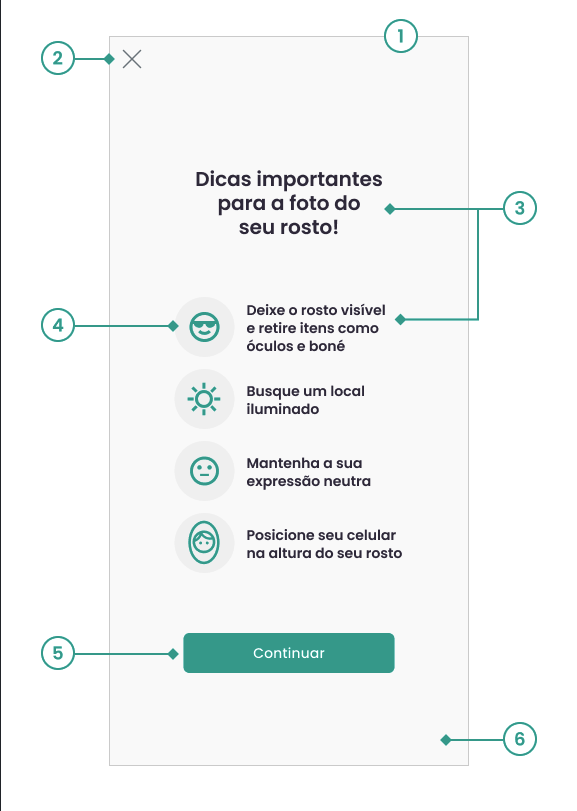
- Kotlin
- Java
- Swift
1-Screen
a.Visibility on/off
customizer.instructionScreen = true
2-Back Button (X)
a.Icon image
customizer.cancelButton.image = *X image
b.Visibility on/off
customizer.cancelButtonEnable = true
c.Position
customizer.cancelPosition = CancelPosition.Left
3-Texts
a.Title
customizer.instructionTextFont.header = poppins_bold customizer.instructionMessage.setInstructionHeader("Important tips for your face photo!") customizer.instructionMessageColor.setHeaderTextColor("#332D41")
b.Items
customizer.instructionTextFont.Int = poppins_regular customizer.instructionMessage.setInstructionNoItems("Keep your face visible and remove items like glasses and hats") customizer.instructionMessage.setInstructionPlace("Find a well-lit location") customizer.instructionMessage.setInstructionExpression("Keep your expression neutral") customizer.instructionMessage.setInstructionPosition("Position your phone at face level") customizer.instructionMessageColor.setMessageTextColor("#332D41")
4-Icons
a.Icon color
customizer.instructionIcon.setColor("#00A594")
b.Icon background color
customizer.instructionIcon.setBackgroundColor("#F1F1F1")
5-Continue Button
a.Button color
customizer.InstructionButton.setColor("#00A594")
b.Text color
customizer.InstructionButton.setTextColor("#FFFFFFFF")
c.Text
customizer.instructionButton.setText("Continue")
d.Text font
customizer.instructionButton.font = R.font.poppins_font_family
e.Rounded border
customizer.InstructionButton.radius = 10
6-Screen background
a.Background color
customizer.instructionBackground.setColor("#FAFAFA")
1-Screen
a.Visibility on/off
customizer.setInstructionScreen(true);
2-Back Button (X)
a.Icon image
customizer.getCancelButton().setImage(com.google.android.material.R.drawable.ic_mtrl_chip_close_circle);
b.Visibility on/off
customizer.setCancelButtonEnable(true);
c.Position
customizer.setCancelPosition(CancelPosition.Left);
3-Texts
a.Title
customizer.getInstructionTextFont().setHeader(R.font.poppins_bold); customizer.getInstructionMessage.setInstructionHeader("Important tips for your face photo!"); customizer.getInstructionMessageColor.setHeaderTextColor("#332D41")
b.Items
customizer.getInstructionTextFont().setText(R.font.poppins_regular); customizer.getInstructionMessage.setInstructionNoItems("Keep your face visible and remove items like glasses and hats"); customizer.getInstructionMessage.setInstructionPlace("Find a well-lit location"); customizer.getInstructionMessage.setInstructionExpression("Keep your expression neutral"); customizer.getInstructionMessage.setInstructionPosition("Position your phone at face level"); customizer.getInstructionMessageColor.setHeaderTextColor("#332D41")
4-Icons
a.Icon color
customizer.getInstructionIcon.setColor("#00A594");
b.Icon background color
customizer.getInstructionIcon.setBackgroundColor("#F1F1F1");
5-Continue Button
a.Button color
customizer.getInstructionButton().setColor("#00A594");
b.Text color
customizer.getInstructionButton().setTextColor("#FFFFFF");
c.Text
customizer.getInstructionButton().setText("Continue");
d.Text font
customizer.instructionButton.setFont(R.font.poppins_font_family)
e.Rounded border
customizer.getInstructionButton().setRadius(10);
6-Screen background
a.Background color
customizer.getInstructionBackground().setColor("#FAFAFA");
1-Screen
a.Visibility on/off
customizer.showInstructions = true
2-Back Button (X) (same for camera screen)
a.Icon image
customizer.cancelButton.icon = UIImage(named: "ic_close")
b.Visibility on/off
customizer.cancelButtonenable = true
c.Position
customizer.cancelButton.position = .right
3-Texts
a.Title
customizer.instructionsMessages.title = "Important tips\nfor your\nface photo!" customizer.instructionMessageColor.headerTextColorResource = UIColor.white
b.Items
customizer.instructionsMessages.familyFont = "Poppins-SemiBold" customizer.instructionsMessages.noItems = "Keep your face visible\nand remove items like\nglasses and hats" customizer.instructionsMessages.place = "Find a well-lit\nlocation" customizer.instructionsMessages.expression = "Keep your\nexpression neutral" customizer.instructionsMessages.position = "Position your phone\nat face level" customizer.instructionMessageColor.messageTextColorResource = UIColor.white
4-Icons
a.Icon color
customizer.instructionsIcon.color = UIColor(red: 0.00, green: 0.65, blue: 0.58, alpha: 1.00)
b.Icon background color
customizer.instructionsIcon.background = .blue
5-Continue Button
a.Button color
customizer.instructionsButton.color = UIColor(red: 0.00, green: 0.65, blue: 0.58, alpha: 1.00) // primary
b.Text color
customizer.instructionsButton.textColor = UIColor.white
c.Text
customizer.instructionsButton.textLabel = "Continue"
d.Text font
customizer.instructionButton.font = "Poppins-SemiBold"
e.Rounded border
customizer.instructionsButton.radius = 10
6-Screen background
a.Background color
customizer.instructionsBackground.color = .white
Camera Screen - Biometric Capture
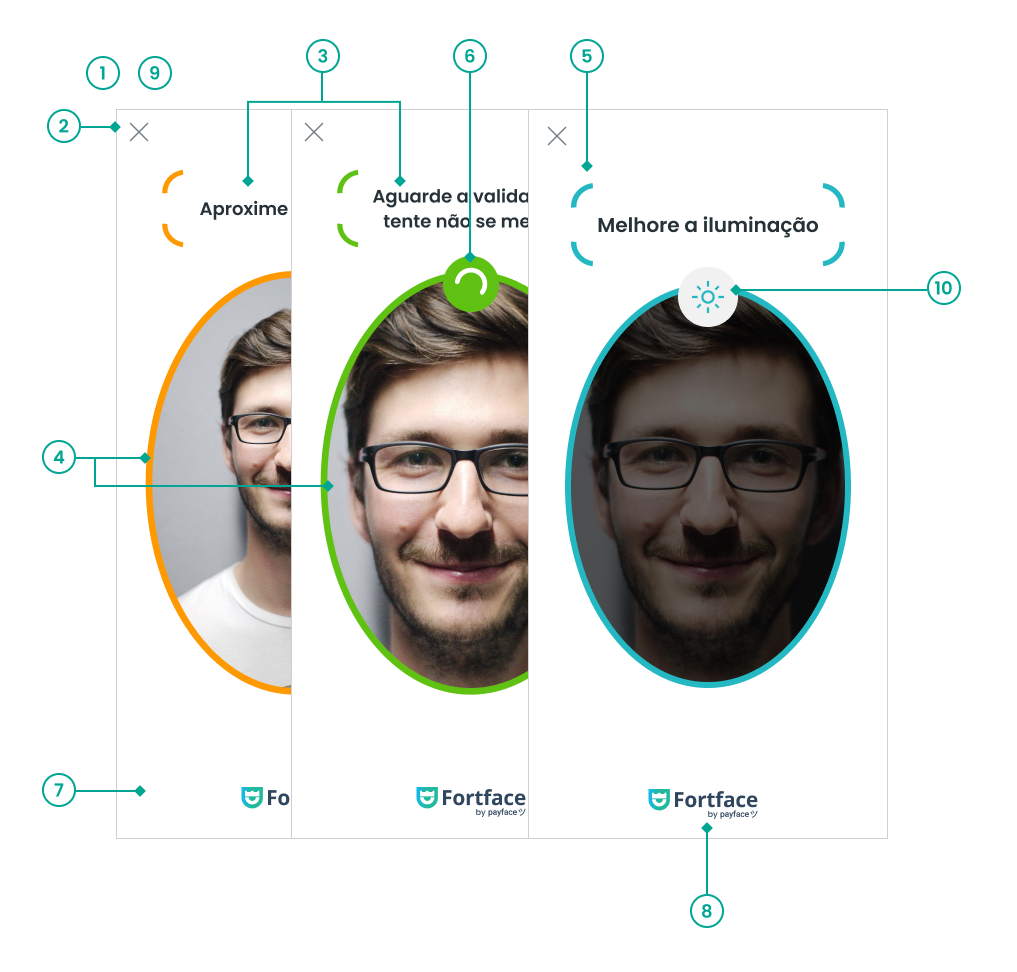
- Kotlin
- Java
- Swift
1-Timeout
a.Time
customizer.cameraTimeout = 30 customizer.cameraMinStabilizationTime = 2 customizer.cameraMaxStabilizationTime = 3 customizer.brightnessValidationTimeout = 10
2-Back Button (X)
a.Icon image
customizer.cancelButton.image = *X image
b.Visibility on/off
customizer.cancelButtonEnable = true
c.Position
customizer.cancelPosition = CancelPosition.Left
3-Feedback messages
a.Font
customizer.cameraFont.cameraMessageFont = poppins_semibold
b.Texts
customizer.cameraMessage.setStartMessage("Frame your face inside the oval shape")
customizer.cameraMessage.setFaceNoCenter("Center your face")
customizer.cameraMessage.setFacePositioned("Wait for validation, try not to move")
customizer.cameraMessage.setNoFace("Position your face in the indicated area")
customizer.cameraMessage.setFaceFar("Move your face closer")
customizer.cameraMessage.setFaceNear("Move your face away")
customizer.cameraMessage.setFaceCenterLeft("Move the camera\nto the left")
customizer.cameraMessage.setFaceCenterRight("Move the camera\nto the right")
customizer.cameraMessage.setFaceCenterUp("Move the camera\nto the top")
customizer.cameraMessage.setFaceCenterDown("Move the camera\nto the bottom")
customizer.cameraMessage.setFacePitchIsUp("Lower your face")
customizer.cameraMessage.setFacePitchIsDown("Raise your face")
customizer.cameraMessage.setNoFaceYaw("Look forward")
customizer.cameraMessage.setNoFaceRoll("Keep your head straight")
customizer.cameraMessage.setFaceRollLeft("Tilt your head to the left")
customizer.cameraMessage.setFaceRollRight("Tilt your head to the right")
customizer.cameraMessage.setFaceBrightnessLow("Improve lighting")
customizer.cameraMessage.setFaceBrightnessHigh("Reduce light on your face")
The property setNoFaceRoll is replaced by the properties setFaceRollLeft and setFaceRollRight for users with active screen readers.
c.Color
customizer.cameraColor.setMessageTextColor("#263238")
4-Status
customizer.cameraColor.setNeutralColor("#CDCDCD")
a.Alert
customizer.cameraColor.setAlertColor("#FF9902")
b.Success
customizer.cameraColor.setSuccessColor("#5FC213")
c.Brightness
customizer.cameraColor.setBrightnessAlertColor("#24B8C2")
5-Message frames
a.Visibility on/off
customizer.cameraFrameText.visible = true
6-Success status loading
a.Color
customizer.cameraLoading.setCameraLoadingColor("#5FC213")
7-Screen background
a.Color
customizer.cameraBackground.setColor(R.color.new_color_1)
8-Footer logo
a.Image
customizer.cameraLogo.logo = R.drawable.ic_small_logo
9-Modal Mode
a.Modal mode activation
customizer.screenMode = ScreenMode.Modal
b.Background
customizer.modalBackground.setOverlayColor("#000000") customizer.modalBackground.overlayOpacity = 0.2f
c.Orientation
customizer.screenOrientation = ScreenOrientation.Automatic
10-Brightness Icon
a.Image
customizer.cameraIcon.setHighBrightnessIcon(R.drawable.ic_brightness_high) customizer.cameraIcon.setLowBrightnessIcon(R.drawable.ic_brightness_low)
b.Color
customizer.cameraIcon.setBackgroundColor("#F1F1F1")
1-Timeout
a.Time
customizer.setCameraTimeout(30); customizer.setCameraMinStabilizationTime(2); customizer.setCameraMaxStabilizationTime(3); customizer.setBrightnessValidationTimeout(10);
2-Back Button (X)
a.Icon image
customizer.getCancelButton().setImage(com.google.android.material.R.drawable.ic_mtrl_chip_close_circle);
b.Visibility on/off
customizer.setCancelButtonEnable(true);
c.Position
customizer.setCancelPosition(CancelPosition.Left);
3-Feedback messages
a.Font
customizer.getCameraFont().setCameraMessageFont(R.font.poppins_semibold);
b.Texts
customizer.getCameraMessage().setStartMessage("Frame your face inside the oval shape")
customizer.getCameraMessage().setFaceNoCenter("Center your face")
customizer.getCameraMessage().setFacePositioned("Wait for validation, try not to move");
customizer.getCameraMessage().setNoFace("Position your face in the indicated area");
customizer.getCameraMessage().setFaceFar("Move your face closer");
customizer.getCameraMessage().setFaceNear("Move your face away");
customizer.getCameraMessage().setFaceCenterLeft("Move the camera\nto the left");
customizer.getCameraMessage().setFaceCenterRight("Move the camera\nto the right");
customizer.getCameraMessage().setFaceCenterUp("Move the camera\nto the top");
customizer.getCameraMessage().setFaceCenterDown("Move the camera\nto the bottom");
customizer.getCameraMessage().setPitchIsUp("Lower your face");
customizer.getCameraMessage().setPitchIsDown("Raise your face");
customizer.getCameraMessage().setNoFaceYaw("Look forward");
customizer.getCameraMessage().setNoFaceRoll("Keep your head straight");
customizer.getCameraMessage().setFaceRollLeft("Tilt your head to the left")
customizer.getCameraMessage().setFaceRollRight("Tilt your head to the right")
customizer.getCameraMessage().setFaceBrightnessLow("Improve lighting");
customizer.getCameraMessage().setFaceBrightnessHigh("Reduce light on your face");
The property setNoFaceRoll is replaced by the properties setFaceRollLeft and setFaceRollRight for users with active screen readers.
c.Color
customizer.getCameraColor().setMessageTextColor("#263238")
4-Status
a.Alert
customizer.getCameraColor().setAlertColor("#FF9902");
b.Success
customizer.getCameraColor().setSuccessColor("#5FC213");
c.Brightness
customizer.getCameraColor().setBrightnessAlertColor("#24B8C2")
customizer.getCameraColor().setNeutralColor("#CDCDCD")
5-Message frames
a.Visibility on/off
customizer.getCameraFrameText().setVisible(true);
6-Success status loading
a.Color
customizer.getCameraLoading().setCameraLoadingColor("#5FC213");
7-Screen background
a.Color
customizer.getCameraBackground().setColor("#FFEB3B");
8-Footer logo
a.Image
customizer.getCameraLogo.setLogo(R.drawable.ic_small_logo);
9-Modal Mode
a.Modal mode activation
customizer.setScreenMode(ScreenMode.Modal);
b.Background
customizer.getModalBackground().setOverlayColor("#000000"); customizer.getModalBackground().setOverlayOpacity(0.4f);
c.Orientation
customizer.setScreenOrientation(ScreenOrientation.Automatic);
10-Brightness Icon
a.Image
customizer.cameraIcon.setHighBrightnessIcon(R.drawable.ic_brightness_high) customizer.cameraIcon.setLowBrightnessIcon(R.drawable.ic_brightness_low)
b.Color
customizer.cameraIcon.setBackgroundColor("#F1F1F1")
1-Timeout
a.Time
customizer.cameraTimeout = 30 customizer.cameraMinStabilizationTime = 2.0 customizer.cameraMaxStabilizationTime = 5.0 customizer.brightnessMessageTimeout = 10.0
2-Back Button (X)
a.Icon image
customizer.cancelButton.icon = ImageProvider.image(named: "ic_close")
b.Visibility on/off
customizer.cancelButtonenable = true
c.Position
customizer.cancelButton.position = .left
3-Feedback messages
a.Font
customizer.cameraMessages.familyFont = "Poppins-SemiBold"
b.Texts
customizer.cameraMessages.headerStart
customizer.cameraMessages.noFaceCenter
customizer.cameraMessages.headerStart = "Frame your face\ninside the oval shape" customizer.cameraMessages.noFace = "Position your face in the\nindicated area" customizer.cameraMessages.faceFar = "Move your face closer" customizer.cameraMessages.faceNear = "Move your face away" customizer.cameraMessages.noFaceCenter = "Center your face" customizer.cameraMessages.facePitchIsUp = "Raise your face" customizer.cameraMessages.facePitchIsDown = "Lower your face" customizer.cameraMessages.noFaceYaw = "Look forward" customizer.cameraMessages.noFaceRoll = "Keep your head straight" customizer.cameraMessages.highBrightness = "Reduce the light on\nyour face" customizer.cameraMessages.lowBrightness = "Increase the light on\nyour face" customizer.cameraMessages.faceCenterUp = "Move the camera\nup" customizer.cameraMessages.faceCenterDown = "Move the camera\ndown" customizer.cameraMessages.faceCenterRight = "Move the camera\nto the right" customizer.cameraMessages.faceCenterLeft = "Move the camera\nto the left"
The noFaceRoll property is replaced by the setFaceRollLeft and setFaceRollRight properties for users with active screen readers.
We can also define messages that will be read by accessibility tools. Note that the text displayed will be the one configured in the variables above. This can be useful when the displayed text is very long or contains line breaks and we want the accessibility message to be read smoothly.
customizer.cameraMessages.positioned_accessibility = "Do not move" customizer.cameraMessages.faceCenterLeft_accessibility = "Move the camera to the left" customizer.cameraMessages.faceCenterRight_accessibility = "Move the camera to the right" customizer.cameraMessages.faceCenterUp_accessibility = "Move the camera up" customizer.cameraMessages.faceCenterDown_accessibility = "Move the camera down" customizer.cameraMessages.faceRollRight_accessibility = "Tilt your head to the right" customizer.cameraMessages.faceRollLeft_accessibility = "Tilt your head to the left" customizer.cameraMessages.highBrightness_accessibility = "Reduce the light on your face" customizer.cameraMessages.lowBrightness_accessibility = "Increase the light on your face"
c.Color
customizer.cameraColor.messageTextColorResource = UIColor(red: 0.39, green: 0.65, blue: 0.22, alpha: 1.00)
4-Status
a.Neutral
customizer.cameraColor.neutral = UIColor(red: 0.80, green: 0.80, blue: 0.80, alpha: 1.00)
b.Alert
customizer.cameraColor.alert = UIColor(red: 1.00, green: 0.60, blue: 0.01, alpha: 1.00)
c.Success
customizer.cameraColor.success = UIColor(red: 0.39, green: 0.65, blue: 0.22, alpha: 1.00)
d.Brightness
customizer.cameraColor.brightness = UIColor(red: 0.14, green: 0.72, blue: 0.76, alpha: 1.00)
5-Message frames
a.Visibility on/off
customizer.cameraFrameText.visible = true
6-Success status loading
a.Color
customizer.cameraColor.loadingBackground = UIColor(red: 0.40, green: 0.73, blue: 0.18, alpha: 1.00) // green-success customizer.cameraColor.loadingStroke = UIColor.white
7-Screen background
a.Color
customizer.cameraBackground.color = .white
8-Footer logo
a.Image
customizer.cameraLogo.icon = ImageProvider.image(named: "fortface")
9-Modal Mode
a.Opening SDK in modal
customizer.screenMode.mode = .modal
b.Orientation
customizer.screenOrientation.mode = .automatic
10-Brightness Icon
a.Image
customizer.brightnessIcons.lowBrightness = ImageProvider.image(named: "ic_lowBrightness") customizer.brightnessIcons.highBrightness = ImageProvider.image(named: "ic_highBrightness")
b.Color
customizer.cameraColor.brightness = UIColor(red: 0.14, green: 0.72, blue: 0.76, alpha: 1.00) customizer.cameraColor.brightnessBackground = UIColor(red: 0.95, green: 0.95, blue: 0.95, alpha: 1.00)
Camera Screen - Document Capture
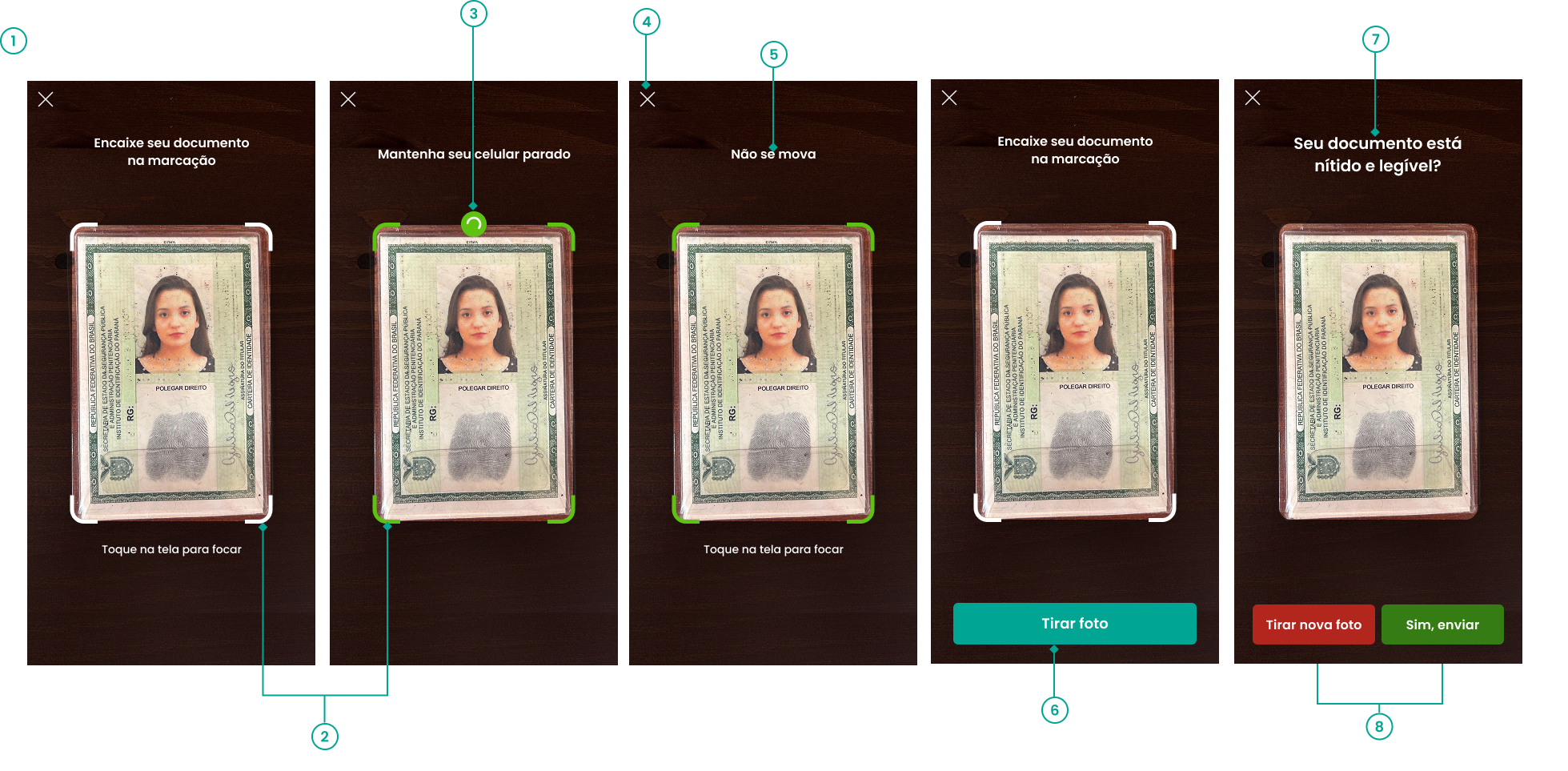
- Kotlin
- Java
- Swift
1-Maximum timeout
customizer.cameraTimeout = 60 customizer.documentAutomaticCaptureTimeout = 20
2-Frame status
a.Neutral
customizer.document.setFrameNeutralColor("#F44336")
b.Success
customizer.document.setFrameSuccessColor("#9C27B0")
3-Success status loading
a.Background color
customizer.document.setLoadingBackgroundColor("#F44336")
b.Stroke color
customizer.document.setLoadingStrokeColor("#9C27B0")
4-Back button (X)
a.Icon image
customizer.cancelButton.image = *X image
b.Visibility on/off
customizer.cancelButtonEnable = true
c.Position
customizer.cancelPosition = CancelPosition.Left
5-Positioning text
a.Font
customizer.cameraFont.cameraMessageFont = R.font.poppins_semibold
b.Texts
customizer.docCameraMessage.setStartMessage("Encaixe seu documento\nna marcação")
customizer.docCameraMessage.setDocPositionedMessage("Mantenha seu celular parado")
customizer.docCameraMessage.setDocOutOfFrameMessage("Posicione seu documento\ndentro da área indicada")
customizer.docCameraMessage.setDocMisalignedMessage("Deixe seu documento reto")
customizer.docCameraMessage.setDocNotFoundMessage("Nenhum documento encontrado,\ntente posicionar novamente")
customizer.docCameraMessage.setDocFarMessage("Aproxime a câmera\ndo seu documento")
customizer.docCameraMessage.setDocNearMessage("Afaste a câmera\ndo seu documento")
customizer.docCameraMessage.setDocCapturedMessage("Não se mova")
customizer.docCameraMessage.setWrongFaceMessage("Mostre o verso do documento")
customizer.docCameraMessage.setDocTapToFocusMessage("Toque na tela para focar")
c. Colors
customizer.docCameraMessage.setFeedbackMessageColor("#FFFFFF")
6-Capture button
a.Background color
customizer.documentCameraButton.setColor("#00A594")
b.Text color
customizer.documentCameraButton.setTextColor(R.color.white) customizer.documentCameraButton.setPressedColor("#00A594")
c.Text font
customizer.documentCameraButton.font = R.font.poppins_regular
d.Text
customizer.docCameraMessage.setDocManualCaptureButtonMessage("Tirar foto")
7-Confirmation text
a.Font
customizer.cameraFont.cameraMessageFont = R.font.poppins_semibold
b.Text
customizer.docCameraMessage.setDocPreviewMessage("Seu documento está\nnítido e legível?")
c. Colors
customizer.docCameraMessage.setDocPreviewMessageTextColor("#FFFFFF")
8-Confirmation buttons
a.Font
customizer.documentPreviewButtons.font = R.font.poppins_regular
b.Text color
customizer.documentPreviewButtons.setAcceptTextColor(R.color.white) customizer.documentPreviewButtons.setCancelTextColor(R.color.white)
c.Background color
customizer.documentPreviewButtons.setAcceptColor("#367C14") customizer.documentPreviewButtons.setPressedColor("#26570E") customizer.documentPreviewButtons.setCancelColor("#B3261E") customizer.documentPreviewButtons.setPressedCancelColor("#B3261E")
d.Text
customizer.docCameraMessage.setDocPreviewConfirmCapture("Sim, enviar")
customizer.docCameraMessage.setDocPreviewRetryCapture("Tirar nova foto")
1-Maximum timeout
customizer.setCameraTimeout(60); customizer.documentAutomaticCaptureTimeout = (20);
2-Frame status
a.Neutral
customizer.getDocument().setFrameNeutralColor("#F44336");
b.Success
customizer.getDocument().setFrameSuccessColor("#9C27B0");
3-Success status loading
a.Background color
customizer.getDocument().setLoadingBackgroundColor("#F44336");
b.Stroke color
customizer.getDocument().setLoadingStrokeColor("#9C27B0");
4-Back button (X)
a.Icon image
customizer.getCancelButton().setImage(*X image);
b.Visibility on/off
customizer.setCancelButtonEnable(true);
c.Position
customizer.setCancelPosition(CancelPosition.Left);
5-Positioning text
a.Font
customizer.getCameraFont().setCameraMessageFont(R.font.poppins_semibold);
b.Texts
customizer.getDocCameraMessage().setStartMessage("Encaixe seu documento\nna marcação")
customizer.getDocCameraMessage().setDocPositionedMessage("Mantenha seu celular parado")
customizer.getDocCameraMessage().setDocOutOfFrameMessage("Posicione seu documento\ndentro da área indicada")
customizer.getDocCameraMessage().setDocMisalignedMessage("Deixe seu documento reto")
customizer.getDocCameraMessage().setDocNotFoundMessage("Nenhum documento encontrado,\ntente posicionar novamente")
customizer.getDocCameraMessage().setDocFarMessage("Aproxime a câmera\ndo seu documento")
customizer.getDocCameraMessage().setDocNearMessage("Afaste a câmera\ndo seu documento")
customizer.getDocCameraMessage().setDocCapturedMessage("Não se mova")
customizer.getDocCameraMessage().setWrongFaceMessage("Mostre o verso do documento")
customizer.getDocCameraMessage().setDocTapToFocusMessage("Toque na tela para focar")
customizer.getDocCameraMessage().setDocPreviewMessage("")
customizer.getDocCameraMessage().setDocPreviewConfirmCapture("")
customizer.getDocCameraMessage().setDocPreviewRetryCapture("")
c. Colors
customizer.getDocCameraMessage().setFeedbackMessageColor("#FFFFFF")
6-Capture button
a.Background color
customizer.getDocumentCameraButton().setColor("#00A594");
b.Text color
customizer.getDocumentCameraButton().setTextColor(R.color.white); customizer.getDocumentCameraButton().setPressedColor("#00A594");
c.Text font
customizer.getDocumentCameraButton().setFont(R.font.poppins_regular);
d.Text
customizer.getDocumentCameraButton().setDocManualCaptureButtonMessage("Tirar foto")
7-Confirmation text
a.Font
customizer.getCameraFont().setCameraMessageFont(R.font.poppins_semibold);
b.Text
customizer.getDocCameraMessage().setDocPreviewMessage("Seu documento está\nnítido e legível?")
c. Colors
customizer.getDocCameraMessage().setDocPreviewMessageTextColor("#FFFFFF")
8-Confirmation buttons
a.Font
customizer.getDocumentPreviewButtons().setFont(R.font.poppins_regular);
b.Text color
customizer.getDocumentPreviewButtons().setAcceptTextColor(R.color.white); customizer.getDocumentPreviewButtons().setCancelTextColor(R.color.white);
c.Background color
customizer.getDocumentPreviewButtons().setAcceptColor("#367C14"); customizer.getDocumentPreviewButtons().setPressedColor("#26570E"); customizer.getDocumentPreviewButtons().setCancelColor("#B3261E"); customizer.getDocumentPreviewButtons().setPressedCancelColor("#B3261E");
d.Text
customizer.getDocumentPreviewButtons().setDocPreviewConfirmCapture("Sim, enviar")
customizer.getDocumentPreviewButtons().setDocPreviewRetryCapture("Tirar nova foto")
1-Maximum timeout
customizer.cameraTimeout = 60 customizer.documentAutomaticCaptureTimeout = 20
2-Frame status
a.Neutral
customizer.docColor.neutral = UIColor.white
b.Success
customizer.docColor.success = = UIColor(red: 0.40, green: 0.73, blue: 0.18, alpha: 1.00) // green-success
3-Success status loading
a.Background color
customizer.docColor.loadingBackground = UIColor(red: 0.40, green: 0.73, blue: 0.18, alpha: 1.00) // green-success
b.Stroke color
customizer.docColor.loadingStroke = UIColor.white
4-Back button (X)
a.Icon image
customizer.cancelButton.image = *X image
b.Visibility on/off
customizer.cancelButton.enable = true
c.Position
customizer.cancelButton.position = .right
5-Positioning text
a.Font
customizer.docMessages.familyFont = "Poppins-SemiBold"
b.Texts
customizer.docMessages.setStartMessage = "Encaixe seu documento\nna marcação" customizer.docMessages.setDocPositionedMessage = "Mantenha seu celular parado" customizer.docMessages.setDocOutOfFrameMessage = "Posicione seu documento\ndentro da área indicada" customizer.docMessages.setDocMisalignedMessage = "Deixe seu documento reto" customizer.docMessages.setDocNotFoundMessage = "Nenhum documento encontrado,\ntente posicionar novamente" customizer.docMessages.setDocFarMessage = "Aproxime a câmera\ndo seu documento" customizer.docMessages.setDocNearMessage = "Afaste a câmera\ndo seu documento" customizer.docMessages.setDocCapturedMessage = "Não se mova" customizer.docMessages.setWrongFaceMessage = "Mostre o verso do documento" customizer.docMessages.setDocTapToFocusMessage = "Toque na tela para focar" customizer.docMessages.setDocPreviewMessage = "Seu documento está\nnítido e legível?" customizer.docMessages.setDocPreviewConfirmCapture = "Sim, enviar" customizer.docMessages.setDocPreviewRetryCapture = "Tirar nova foto" customizer.docMessages.setDocTakePictureMessaage = "Tirar foto"
c.Text color
customizer.docColor.feedbackMessageColor = .red
6-Capture button
a.Background color
customizer.docCameraButton.colorResource = UIColor(resource: .primary)
b.Text color
customizer.docCameraButton.textColorResource = UIColor.white
c.Text font
customizer.docCameraButton.familyFont = "Poppins-SemiBold"
7-Confirmation text
a.Font
customizer.docMessages.familyFont = "Poppins-SemiBold"
b.Text Color
customizer.docMessages.setDocPreviewMessageTextColor = .magenta
8-Confirmation buttons
a.Font
customizer.docPreviewButtons.familyFont = "Poppins-SemiBold"
b.Text color
customizer.docPreviewButtons.acceptTextColorResource = UIColor.white customizer.docPreviewButtons.cancelTextColorResource = UIColor.white
c.Background color
customizer.docPreviewButtons.acceptColorResource = UIColor(red: 0.21, green: 0.49, blue: 0.08, alpha: 1.00) customizer.docPreviewButtons.cancelColorResource = UIColor(red: 0.70, green: 0.15, blue: 0.12, alpha: 1.00)
Document Upload
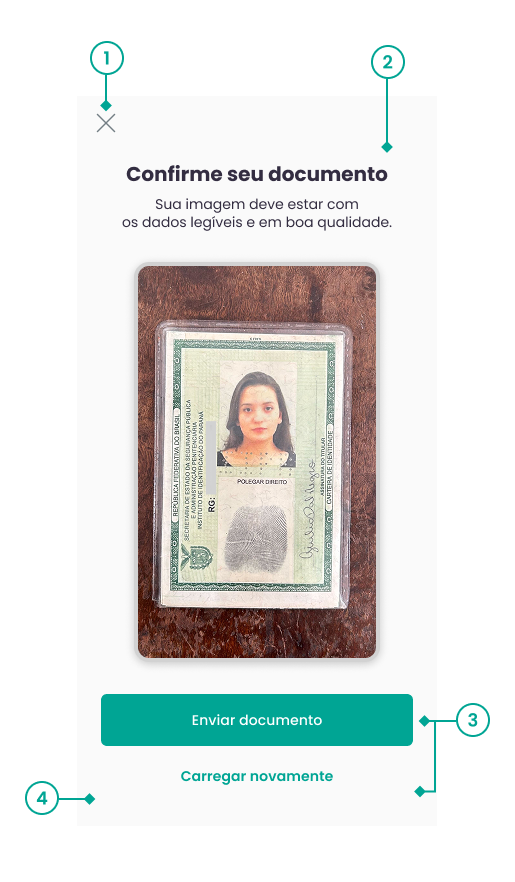
- Kotlin
- Java
- swift
1 - Back button (X)
a.Image
customizer.cancelButton.image = *X image
b.Visibility on/off
customizer.cancelButtonEnable = true
c.Position
customizer.cancelPosition = CancelPosition.Left
2 - Texts
a. Messages
customizer.uploadDocMessage.setUploadDocTitle("Confirme seu documento")
customizer.uploadDocMessage.setUploadDocSubtitle("Sua imagem deve estar com os dados legíveis e em boa qualidade.")
b. Colors
customizer.uploadDocMessage.setUploadDocTitleTextColor("#000000") customizer.uploadDocMessage.setUploadDocSubtitleTextColor("#AAAAAA")
3 - Confirmation buttons
a. Confirmation
customizer.uploadDocMessage.setUploadDocPreviewContinue("Enviar documento")
customizer.uploadDocMessage.setUploadDocPreviewContinueButtonColor("#00A594")
customizer.uploadDocMessage.setUploadDocPreviewContinueButtonTextColor("#FFFFFF")
customizer.uploadDocMessage.setUploadDocWaitMessage("Aguarde")
customizer.uploadDocMessage.setUploadDocPreviewRetryTextColor("#00A594")
b. Reenvio
customizer.uploadDocMessage.setUploadDocPreviewRetry("Carregar novamente")
4 - Background color
a. Color
customizer.uploadDoc.setBackgroundColor("#FFFFFF")
1 - Back button (X)
a.Image
customizer.getCancelButton().setImage(*X image);
b.Visibility on/off
customizer.setCancelButtonEnable(true);
c.Position
customizer.setCancelPosition(CancelPosition.Left);
2 - Texts
a. Messages
customizer.getUploadDocMessage().setUploadDocTitle("Confirme seu documento")
customizer.getUploadDocMessage().setUploadDocSubtitle("Sua imagem deve estar com os dados legíveis e em boa qualidade.")
b. Colors
customizer.getUploadDocMessage().setUploadDocTitleTextColor("#000000") customizer.getUploadDocMessage().setUploadDocSubtitleTextColor("#AAAAAA")
3 - Confirmation buttons
a. Confirmation
customizer.getUploadDocMessage().setUploadDocPreviewContinue("Enviar documento")
customizer.getUploadDocMessage().setUploadDocPreviewContinueButtonColor("#00A594")
customizer.getUploadDocMessage().setUploadDocPreviewContinueButtonTextColor("#FFFFFF")
customizer.getUploadDocMessage().setUploadDocWaitMessage("Aguarde")
customizer.getUploadDocMessage().setUploadDocPreviewRetryTextColor("#00A594")
b. Retry
customizer.getUploadDocMessage().setUploadDocPreviewRetry("Carregar novamente")
4 - Background color
a. Color
customizer.getUploadDoc().setBackgroundColor("#FFFFFF")
1 - Back button (X)
a.Image
customizer.cancelButton.image = *imagem de X
b.Visibility on/off
customizer.cancelButton.enable = true
c.Position
customizer.cancelButton.position = .right
2 - Texts
a.Font
customizer.uploadDocMessages.familyFontTitle = "Poppins-SemiBold"
customizer.uploadDocMessages.familyFontSubtitle = "Poppins-Regular"
customizer.uploadDocMessages.familyFontButtons = "Impact"
b. Messages
customizer.uploadDocMessages.setUploadDocTitle = "Confirme seu documento"
customizer.uploadDocMessages.setUploadDocSubtitle = "Sua imagem deve estar com\nos dados legíveis e em boa qualidade."
customizer.uploadDocMessages.setUploadDocPreviewContinue = "Enviar documento"
customizer.uploadDocMessages.setUploadDocPreviewRetry = "Carregar novamente"
c. Text Color
customizer.uploadDocMessages.setUploadDocTitleTextColor = .green
customizer.uploadDocMessages.setUploadDocSubtitleTextColor = .magenta
3 - Confirmation and retry buttons
a. Confirmation
customizer.uploadDocMessages.setUploadDocPreviewContinue = "Enviar documento"
customizer.uploadDocMessages.setUploadDocWaitMessage = "Aguarde"
b. Retry
customizer.uploadDocMessages.setUploadDocPreviewRetry = "Carregar novamente"
c. Text Color
customizer.uploadDocMessages.setUploadDocPreviewContinueButtonTextColor = .blue
customizer.uploadDocMessages.setUploadDocPreviewRetryTextColor = .purple
d. Button Color
customizer.docColor.setUploadDocPreviewContinueButtonColor = .red
4 - Background
a. Background Color
customizer.docColor.setBackgroundColor = .lightGray
How does it work?
Each variable has its default value.
- If you assign a new value according to the variable type, the new value will be rendered;
- If no new value is assigned, the initial default will be rendered.
- In the case of the capture screen logo, if no image is initialized, nothing will appear
Understanding the code snippet
First, initialize the FortfaceCustomizer class:
- Kotlin
- Java
- Swift
val customizer = FortfaceCustomizer()
FortfaceCustomizer customizer = new FortfaceCustomizer();
let customizer = FortfaceCustomizer()
Then, change the desired parameters:
- Kotlin
- Java
- Swift
customizer.cameraColor.setNeutralColor(R.color.new_color_1) customizer.cameraColor.setSuccessColor("#9C27B0") customizer.cameraMessage.setFaceNear(R.string.text_1) customizer.cameraMessage.setStartMessage("Let's start")
customizer.getCameraColor().setNeutralColor(R.color.new_color_1); customizer.getCameraColor().setSuccessColor("#9C27B0"); customizer.getCameraColor().setFaceNear(R.string.text_1); customizer.getCameraColor().setStartMessage("Let's start");
customizer.cancelButton.enable = false customizer.showInstructions = false customizer.cancelButton.position = .right
Then, override the default customizer:
- Kotlin
- Java
- Swift
FortfaceSDK.customizer=customizer
FortfaceSDK.setCustomizer(customizer)
FortfaceSDK.setCustomizer(customizer)
Reminder
All specific items, such as: icons, images, font family, etc., must be imported into the Assets folder of your app.
JSON Customization
JSON customization allows you to apply the SDK’s visual identity and texts using a .json file included in the integrator application's bundle.
Entry Function
The entry function for JSON customization is FortfaceSDK.setCustomization("file_name").
How to Configure
- Add the JSON file to the integrator project.
- Ensure the file is included in the app bundle under Copy Bundle Resources.
- Call
FortfaceSDK.setCustomizationusing only the file name, without the.jsonextension.
- Swift
FortfaceSDK.setCustomization("customization")
Attention
Use only one customization method per initialization.
- If
setCustomizeris called first,setCustomizationwill not be applied. - If
setCustomizationis called first,setCustomizerwill not override the loaded configuration.
Expected Structure
The JSON file must declare the configurations directly at the root level using blocks such as:
themeface_recognitiondocument_recognitiondocument_upload
Compatibility
Legacy configurations using the examples array are still supported by the SDK.
For new integrations, we recommend declaring the modules directly at the root of the JSON.
{
  "version": "1.0.0",
  "theme": {
    "appearance": {
      "font_family": "Poppins-SemiBold",
      "background_color": "#FFFFFF",
      "orientation": "automatic",
      "modal": {
        "enabled": false
      }
    }
  },
  "face_recognition": {
    "instructions_screen": {
      "visible": true,
      "background_color": "#FAFAFA",
      "title": {
        "content": "Important tips\nfor your\nface photo!",
        "color": "#332D41"
      },
      "topics": {
        "messages": {
          "no_items": {
            "content": "Keep your face visible\nand remove items such as\nglasses and hats",
            "color": "#332D41"
          },
          "well_lit": {
            "content": "Find a well-lit\nlocation",
            "color": "#332D41"
          },
          "neutral_expression": {
            "content": "Keep a neutral\nexpression",
            "color": "#332D41"
          },
          "straight_position": {
            "content": "Position your phone\nat face level",
            "color": "#332D41"
          }
        },
        "icons": {
          "color": "#00A594",
          "background_color": "#F1F1F1"
        }
      },
      "continue_button": {
        "content": "Continue",
        "background_color": "#00A594",
        "text_color": "#FFFFFF",
        "corner_radius": 10
      }
    },
    "camera_screen": {
      "background_color": "#FFFFFF",
      "timeout": 30,
      "min_stabilization_time": 1.0,
      "max_stabilization_time": 2.0,
      "close_button": {
        "visible": true,
        "position": "top-left"
      },
      "positioning_messages": {
        "color": "#263238",
        "frame_text_visible": true,
        "loading_stroke_color": "#FFFFFF",
        "content": {
          "positioned": "Wait for validation,\ntry not to move",
          "no_face": "Position your face inside the indicated area",
          "face_far": "Move your face closer",
          "face_near": "Move your face farther away",
          "face_pitch_up": "Lower your face",
          "face_pitch_down": "Raise your face",
          "no_face_yaw": "Look forward",
          "no_face_roll": "Keep your head straight",
          "face_roll_left": "Tilt your head to the left",
          "face_roll_right": "Tilt your head to the right",
          "face_center_left": "Move the camera to the left",
          "face_center_right": "Move the camera to the right",
          "face_center_up": "Move the camera upward",
          "face_center_down": "Move the camera downward"
        }
      },
      "feedback_colors": {
        "alert": "#FF9902",
        "luminosity": "#24B8C2",
        "success": "#5FC213"
      },
      "brightness_validation": {
        "timeout": 10,
        "messages": {
          "too_dark": "Improve the lighting",
          "too_bright": "Reduce the light on your face"
        }
      }
    }
  },
  "document_recognition": {
    "camera_screen": {
      "timeout": 60,
      "automatic_capture_timeout": 20,
      "close_button": {
        "visible": true,
        "position": "top-right"
      },
      "feedback_colors": {
        "neutral": "#F44336",
        "success": "#9C27B0"
      },
      "positioning_messages": {
        "color": "#FFFFFF",
        "loading_stroke_color": "#FFFFFF",
        "font": {
          "family": "Poppins-SemiBold"
        },
        "content": {
          "start": "Fit your document\ninside the frame",
          "positioned": "Keep your phone steady",
          "out_of_frame": "Position your document\ninside the indicated area",
          "misaligned": "Keep your document straight",
          "not_detected": "No document detected,\ntry positioning it again",
          "too_far": "Move the camera closer\nto your document",
          "too_near": "Move the camera farther\nfrom your document",
          "capturing": "Do not move",
          "wrong_face": "Show the back side of the document",
          "tap_to_focus": "Tap the screen to focus"
        }
      },
      "manual_capture_button": {
        "content": "Take photo",
        "background_color": "#00A594",
        "text_color": "#FFFFFF",
        "font": {
          "family": "Poppins-SemiBold"
        }
      }
    },
    "review_screen": {
      "title": {
        "content": "Is your document\nclear and readable?",
        "color": "#FFFFFF",
        "font": {
          "family": "Poppins-SemiBold"
        }
      },
      "confirm_button": {
        "content": "Yes, submit",
        "background_color": "#367C14",
        "text_color": "#FFFFFF"
      },
      "retry_button": {
        "content": "Take another photo",
        "background_color": "#B3261E",
        "text_color": "#FFFFFF"
      }
    }
  },
  "document_upload": {
    "review_screen": {
      "background_color": "#FFFFFF",
      "close_button": {
        "visible": true,
        "position": "top-right"
      },
      "title": {
        "content": "Confirm your document",
        "color": "#000000",
        "font": {
          "family": "Poppins-SemiBold"
        }
      },
      "description": {
        "content": "Your image must have\nclear and readable data with good quality.",
        "color": "#AAAAAA",
        "font": {
          "family": "Poppins-Regular"
        }
      },
      "confirm_button": {
        "content": "Submit document",
        "wait_message": "Please wait",
        "background_color": "#00A594",
        "text_color": "#FFFFFF",
        "font": {
          "family": "Poppins-SemiBold"
        }
      },
      "retry_button": {
        "content": "Upload again",
        "text_color": "#00A594",
        "font": {
          "family": "Poppins-SemiBold"
        }
      }
    }
  }
}
Accepted Fields
| Field | Description |
|---|---|
theme.appearance.font_family | Default font applied to supported texts and buttons. |
theme.appearance.background_color | Default background color for supported screens. |
theme.appearance.orientation | SDK orientation: automatic, portrait, or landscape. |
theme.appearance.modal.enabled | Defines modal (true) or fullscreen (false) presentation. |
face_recognition.instructions_screen | Customizes the face capture instruction screen. |
face_recognition.camera_screen | Customizes the face capture camera screen. |
document_recognition.camera_screen | Customizes the document capture camera screen. |
document_recognition.review_screen | Customizes the document capture review screen. |
document_upload.review_screen | Customizes the document upload review screen. |
Notes
- Colors must be provided in hexadecimal format, for example
#00A594. - The name passed to
setCustomizationmust match the resource name in the bundle without the.jsonextension. - Missing fields keep the SDK default values.
- On iOS,
font.sizeandfont.weightmay exist in the JSON, but onlyfont.familyis applied to supported fields. - For images, such as
face_recognition.camera_screen.logo, provide either the name of an asset from the integrator app or a base64 image.
Modal or Fullscreen Mode
In addition to interface customizations, we also have the option to use our SDK in modal or fullscreen opening, both working in both portrait and landscape orientation, with responsiveness adapting to the selected scenario.
The SDK is displayed in full-screen mode in vertical (portrait) orientation by default on all supported devices. On tablets, it is possible to configure the orientation to horizontal (landscape) or automatic, allowing the SDK to adjust to the device's orientation, in addition to configuring for modal display.
Examples
Modal Mode (Portrait and Landscape)
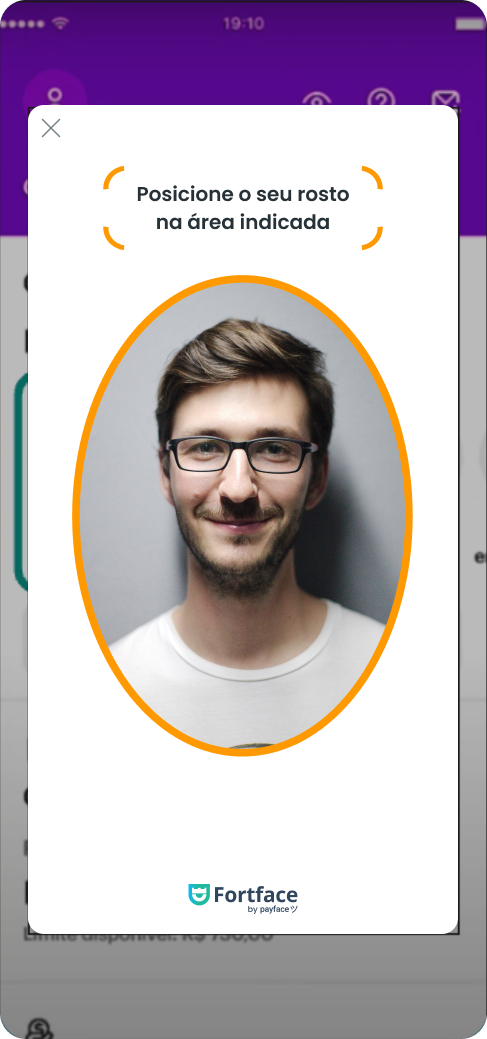
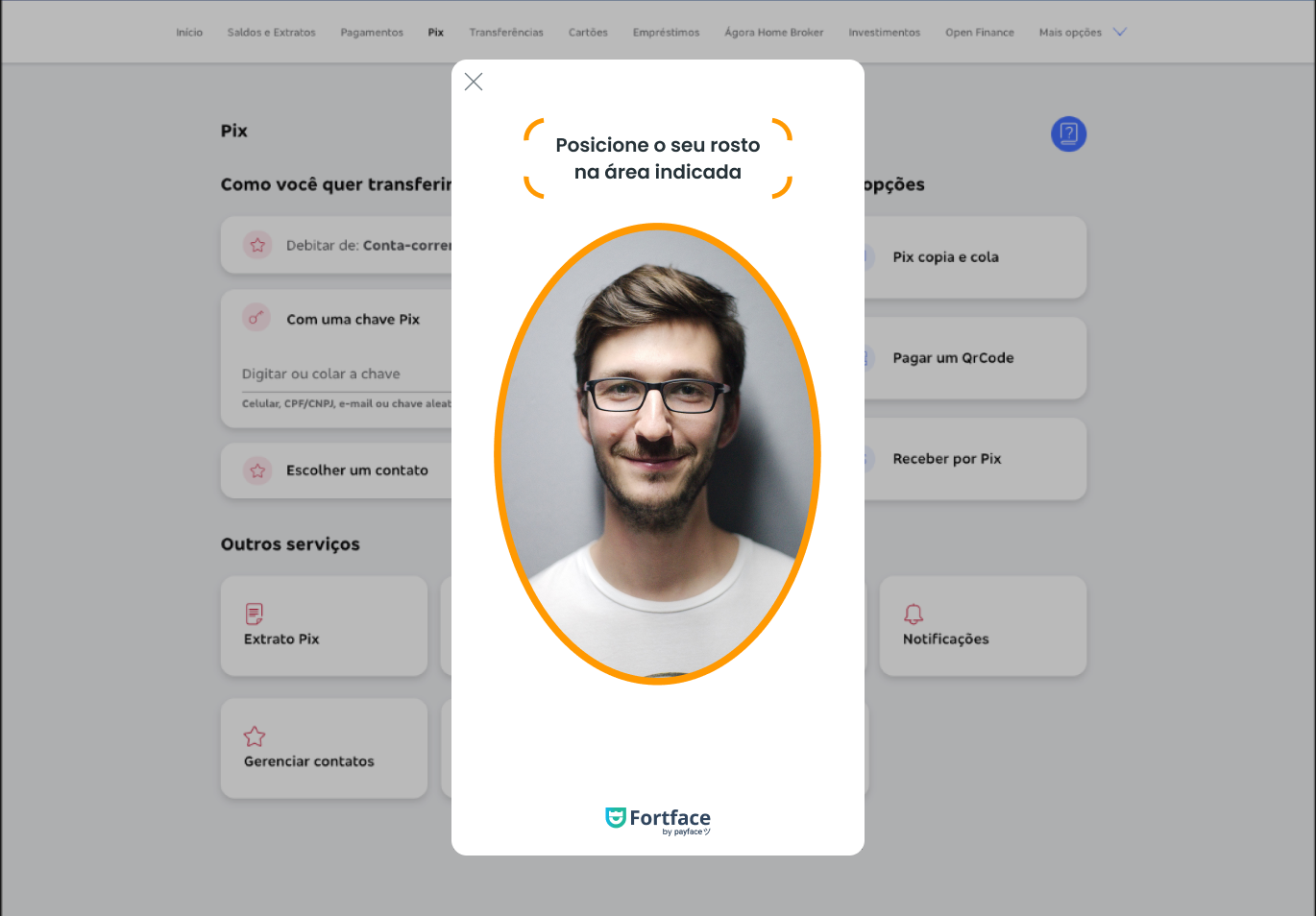
Modo Fullscreen (Portrait e Landscape) - Valor padrão
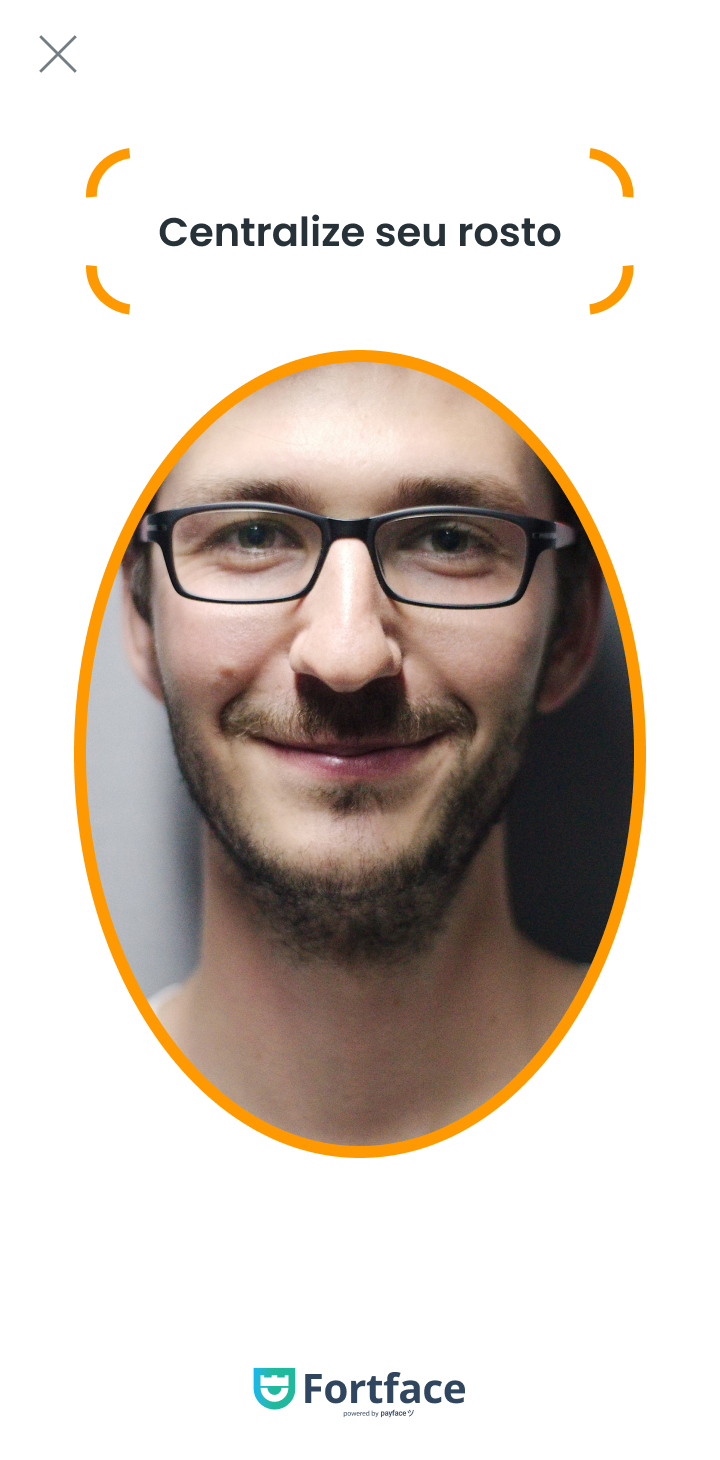
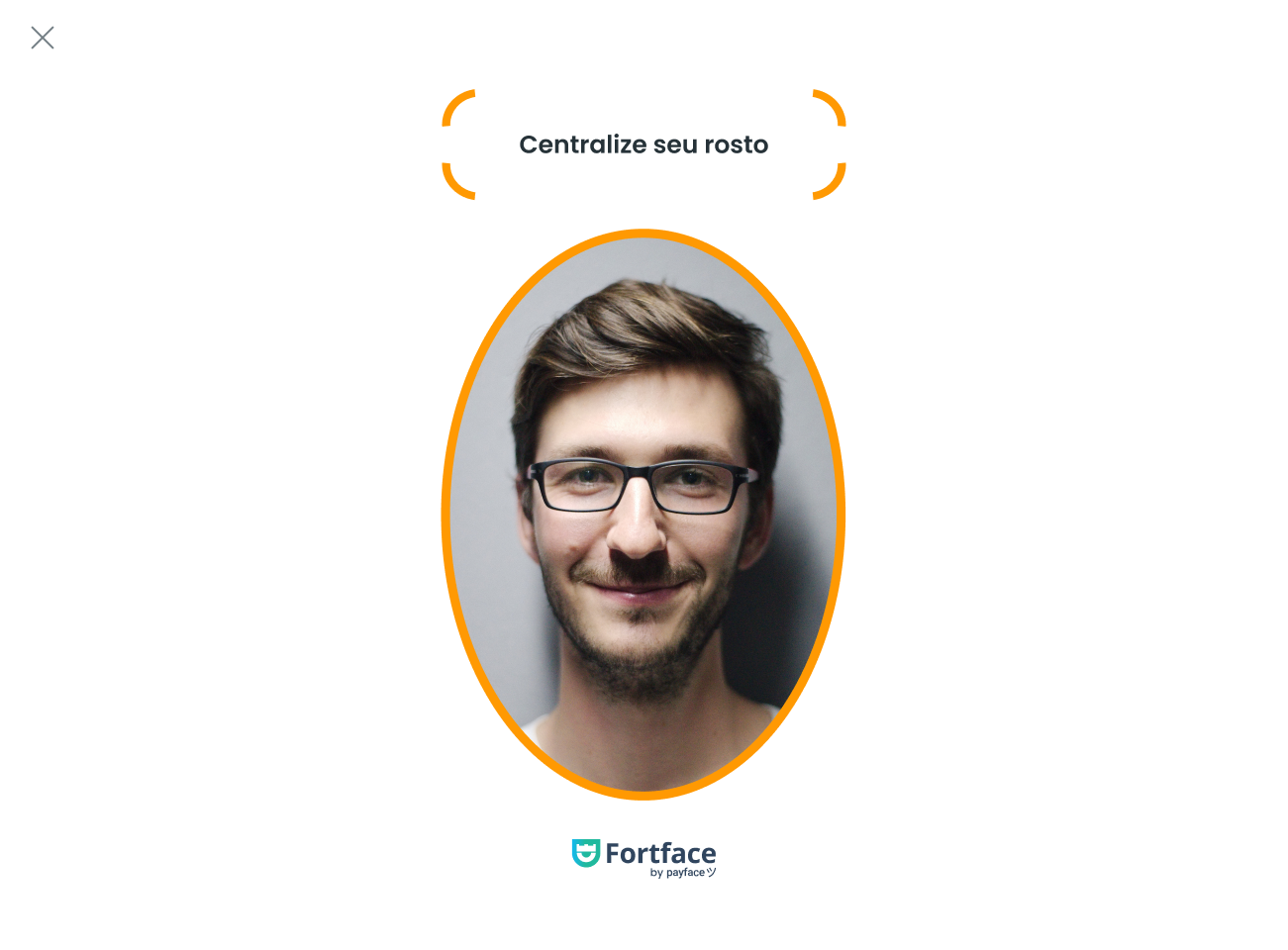
To configure these modes, you need to change the following attributes:
Kotlin
- Kotlin
- Java
- Swift
1-Activating modal mode
customizer.screenMode = ScreenMode.Modal
2-Activating fullscreen mode
customizer.screenMode = ScreenMode.FullScreen
3-Orientation
customizer.screenOrientation = ScreenOrientation.Automatic customizer.screenOrientation = ScreenOrientation.Landscape customizer.screenOrientation = ScreenOrientation.Portrait
1-Activating modal mode
customizer.setScreenMode(ScreenMode.Modal);
2-Activating fullscreen mode
customizer.setScreenMode(ScreenMode.FullScreen);
3-Orientation
customizer.setScreenOrientation(ScreenOrientation.Automatic); customizer.setScreenOrientation(ScreenOrientation.Landscape); customizer.setScreenOrientation(ScreenOrientation.Portrait);
1-Activating modal mode
customizer.screenMode.mode = .modal
2-Activating fullscreen mode
customizer.screenMode.mode = .fullscreen
3-Orientation
customizer.screenOrientation.mode = .automatic customizer.screenOrientation.mode = .portrait customizer.screenOrientation.mode = .landscape
On iOS, it is necessary to add this configuration in the AppDelegate of the integrating application so that the orientationManager can adapt in cases of screen rotation.
import UIKit

class AppDelegate: UIResponder, UIApplicationDelegate {
    (...)
    var orientationLock = UIInterfaceOrientationMask.all
    func application(_ application: UIApplication, supportedInterfaceOrientationsFor window: UIWindow?) -> UIInterfaceOrientationMask {
        return self.orientationLock
    }
}
These modal and landscape functionalities are available only for tablets. When configured and executed on smartphones, the SDK will adopt the fullscreen display behavior in portrait orientation.